What Is “The Cloud”? A Simple Explanation of How It Actually Works
By Ken Hollow, the man who had to explain to a fox spirit that her photos don’t literally float above the earth I knew this…
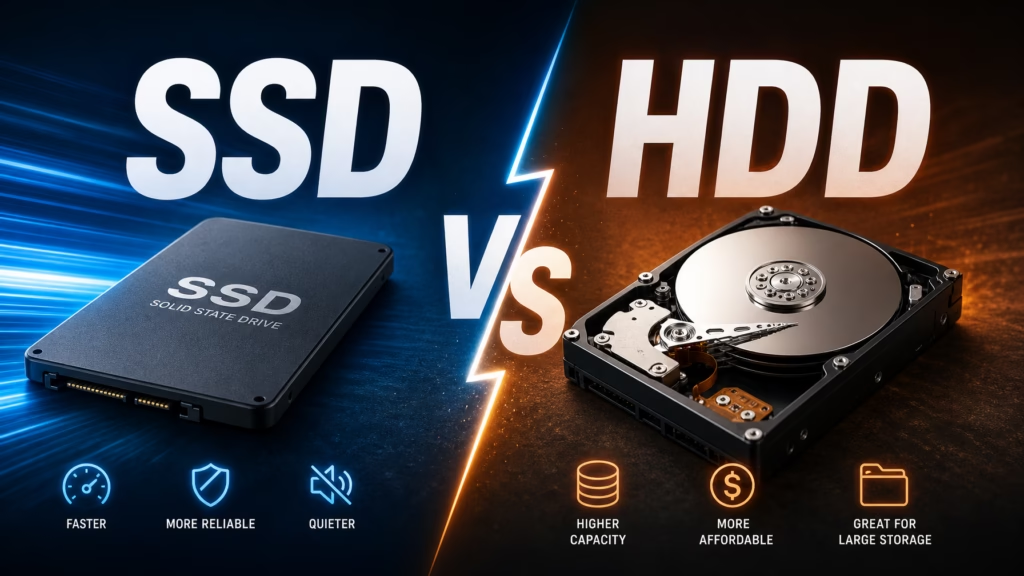
By Ken Hollow, the man who replaced a hard drive and was treated like a wizard for making a computer boot in 15 seconds
I replaced Nana’s hard drive on a Tuesday. She turned on the computer Wednesday morning and was ready to work in 15 seconds.
She stared at the screen. Then at me. Then back at the screen.
“Ken. What did you DO?”
“I replaced the HDD with an SSD.”
“I have no idea what those letters mean but please never undo it.”
If your computer takes ages to boot, programs are slow to launch, and file transfers feel like they’re happening in geological time, the storage drive is almost certainly the reason. The difference between an HDD and an SSD is the single biggest performance gap in modern computing — and upgrading from one to the other is the best money you can spend on an aging computer.
An HDD (hard disk drive) stores data on spinning magnetic platters — it’s older, cheaper per gigabyte, but slow. An SSD (solid-state drive) stores data on flash memory chips with no moving parts — it’s faster (5-10x), more reliable, silent, and uses less power. If your computer has an HDD, replacing it with an SSD is the most impactful upgrade you can make. A 1 TB SSD costs around $60-90.
An HDD works like a record player. Inside the drive are spinning magnetic platters (disks), and a tiny mechanical arm moves back and forth across them to read and write data. The platters spin at 5,400 or 7,200 revolutions per minute. Every time your computer needs data, the arm has to physically move to the right spot on the spinning platter, read the data, and deliver it. That mechanical movement is what makes HDDs slow — and it’s why you can sometimes hear them clicking or whirring.
An SSD has no moving parts at all. It stores data on interconnected flash memory chips — the same basic technology used in USB drives and phone storage, but much faster. Since there’s nothing to physically move, the SSD can access any piece of data almost instantly. No spinning, no arm movement, no mechanical delay.
The speed difference isn’t subtle. It’s like the difference between looking something up in a physical filing cabinet (HDD) versus searching a spreadsheet with Ctrl+F (SSD).
“So my old drive was a tiny record player reading a spinning disk, and my new drive is just… instant? Why didn’t Ken switch this sooner? I’ll be sending him a formal grievance.”
| Feature | HDD (Hard Disk Drive) | SSD (Solid-State Drive) |
|---|---|---|
| Boot time | 30 seconds to 2+ minutes | 10-20 seconds |
| Program launch speed | Several seconds to load | Nearly instant |
| File transfer speed | 80-160 MB/s | 500-7,000+ MB/s (depending on type) |
| Noise | Audible clicking and spinning | Completely silent |
| Durability | Vulnerable to drops and vibration (moving parts can break) | No moving parts — more shock-resistant |
| Power consumption | Higher — motors need power to spin | Lower — better battery life in laptops |
| Weight | Heavier | Lighter |
| Price (1 TB) | $30-50 | $60-90 |
| Lifespan | 3-5 years typical | 5-10+ years typical |
The only advantage HDDs still have is cost per gigabyte for very large capacities. If you need 4+ TB of storage for massive media libraries, HDDs are still cheaper. For everything else, SSDs are better in every measurable way.
Not all SSDs are the same speed. There are two main types:
SATA SSDs connect using the same interface as traditional hard drives. They’re limited to about 500-550 MB/s — which is still 3-5x faster than an HDD. SATA SSDs look like small rectangular boxes (2.5-inch form factor) and fit into any computer that currently has an HDD. These are the most common upgrade choice for older computers.
NVMe SSDs connect directly to the motherboard via an M.2 slot and are dramatically faster — 3,000 to 7,000+ MB/s for modern models. That’s 30-50x faster than an HDD. Most computers made after 2017-2018 support NVMe. These are smaller (about the size of a stick of gum) and are the standard in new computers.
For most people upgrading an older computer, a SATA SSD is the practical choice — it fits directly into the existing HDD slot and provides a massive speed improvement. If your computer has an M.2 slot, an NVMe SSD is the better investment for future-proofing.
On Windows: Open Task Manager (Ctrl + Shift + Esc) → Performance tab → click on Disk 0. The type is shown — it’ll say “SSD” or show the model name (Google the model to confirm). You can also check by opening the System Information tool (type “msinfo32” in the Start menu) → Components → Storage → Disks.
On Mac: Apple menu → About This Mac → More Info → System Report → Hardware → Storage. Look for “Medium Type” — it will say “Solid State” or “Rotational.”
The quick test: If your computer boots in under 30 seconds, you probably have an SSD. If it takes over a minute, you probably have an HDD.
If your computer has an HDD and feels slow, upgrading to an SSD is the single most effective thing you can do. It’s more noticeable than adding RAM, more noticeable than a software cleanup, and significantly cheaper than buying a new computer.
The upgrade process involves cloning your existing drive to the new SSD (so all your files, settings, and programs transfer over) and then swapping the drives. Free software like Macrium Reflect (Windows) or Carbon Copy Cloner (Mac) handles the cloning. The physical swap is straightforward — most desktops and older laptops have easily accessible drive bays.
If you’re not comfortable doing it yourself, any computer repair shop can handle it for a modest labor fee — typically $30-75 on top of the drive cost.
HDDs use spinning magnetic disks — they’re slow, noisy, and fragile. SSDs use flash memory chips — they’re 5-10x faster, silent, more durable, and use less power. If your computer has an HDD, upgrading to an SSD ($60-90 for 1 TB) is the single best upgrade you can make. Boot times drop from minutes to seconds, programs launch instantly, and everything feels dramatically faster. SATA SSDs fit into any existing HDD slot. NVMe SSDs are even faster but require a compatible M.2 slot. The only remaining advantage of HDDs is lower cost for very large storage capacities (4+ TB).
“My old hard drive was a ‘tiny record player.’ My new SSD is ‘instant magic with no moving parts.’ This is the only computer terminology I will ever remember, and I will use it incorrectly at every opportunity.”

Hi. I’m Ken. I run Two Second Solutions, a one-man agency that somehow landed a fox spirit influencer as a client. I drink too much coffee, blog when I need to vent, and regularly update my résumé just in case she sets the office on fire again. I’m not crying — it’s just spell residue.
By Ken Hollow, the man who had to explain to a fox spirit that her photos don’t literally float above the earth I knew this…
By Ken Hollow, the man who discovered that a fox spirit has been “backing up” her photos by emailing them to herself since 2019 “Nana.…
By Ken Hollow, the man who discovered that a fox spirit has been storing the same photos in three different cloud services simultaneously “for safety”…