Does Charging Your Phone Overnight Actually Damage the Battery?
By Ken Hollow, the man who once found a phone charging under a pillow at 3am and had to explain the concept of “thermal runaway”…
By Ken Hollow, the man who had to explain to a fox spirit why having 47 browser tabs open makes the computer “forget how to think”
“Ken, I have important tabs open.”
“Nana, you have 47 tabs open.”
“All important.”
“One of them is a recipe for dumplings from 2019.”
“SENTIMENTALLY important.”
The computer was, predictably, crawling. Because 47 browser tabs eat RAM like nothing else, and Nana’s computer didn’t have much to spare. But before I could explain why, I had to explain what RAM actually is — which turned out to be harder than explaining why you shouldn’t have 47 tabs open.
So here’s the explanation I gave her, minus the interruptions.
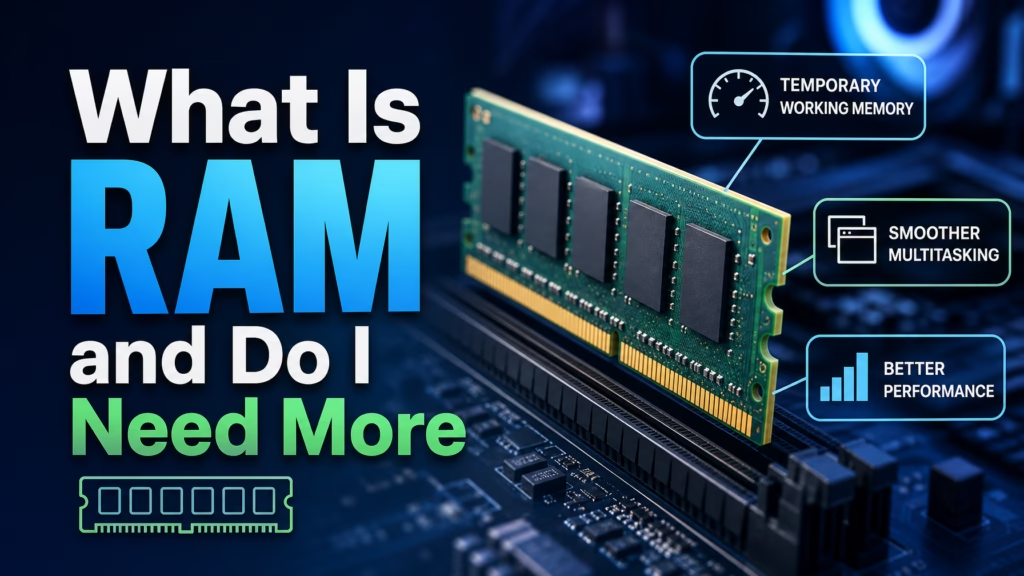
RAM is your computer’s short-term working memory. It temporarily holds the data your computer is actively using right now — open apps, browser tabs, documents, background processes. More RAM means your computer can handle more tasks at once without slowing down. It’s different from storage (your hard drive or SSD), which holds files permanently. Most people need 8 GB for basic use and 16 GB for multitasking, gaming, or creative work.
Imagine your computer as a person working at a desk.
The filing cabinet (your hard drive or SSD) is where all your files are stored permanently — documents, photos, programs, everything. It holds a lot but takes time to open drawers and find things.
The desk surface (your RAM) is where you put the things you’re actively working on. Bigger desk = more things you can have open and spread out at once. Everything on the desk is instantly accessible — no opening drawers needed.
When you open a program, your computer pulls it from the filing cabinet and puts it on the desk. When you open a browser tab, it goes on the desk. Each open app, each tab, each background process takes up desk space.
When the desk fills up? You start stacking things on top of each other, shuffling papers back to the filing cabinet to make room, pulling them out again when you need them. This constant shuffling is why your computer gets slow when RAM is maxed out — it’s called “paging” or “swapping,” and it’s dramatically slower than just having enough desk space to begin with.
“So RAM is desk space, and my 47 tabs are 47 documents spread across the desk, and the desk is too small? …I need a bigger desk.” — Yes. That’s exactly it.
People confuse RAM and storage constantly, and it’s easy to see why — they’re both measured in gigabytes. But they serve completely different purposes.
| RAM (Memory) | Storage (Hard Drive / SSD) |
|---|---|
| Temporary — cleared when you shut down | Permanent — keeps files when powered off |
| Holds what you’re using right now | Holds all your files, apps, and the OS |
| Very fast — instant access | Slower (HDD) or fast (SSD), but not as fast as RAM |
| Typically 4-32 GB | Typically 128 GB – 2 TB |
| More = more multitasking | More = more files and apps you can store |
When your phone says “128 GB” on the box, that’s storage. When a computer lists “16 GB RAM,” that’s memory. Different things, different jobs.
On Windows: Right-click the Start button → System. Your RAM (“Installed RAM”) is listed near the top.
On Mac: Apple menu → About This Mac. RAM is listed as “Memory.”
On iPhone/Android: Phones don’t prominently display RAM in settings, but you can search your phone model online to find the specs. Most modern phones have 6-12 GB.
4 GB: Barely enough in 2026. Basic web browsing with a few tabs, email, word processing. You’ll feel the limitations quickly if you multitask at all. If your computer has 4 GB, upgrading is one of the best investments you can make.
8 GB: The practical minimum for comfortable everyday use. Handles web browsing with 10-15 tabs, Office apps, streaming, light photo editing, and moderate multitasking. This is what most people need.
16 GB: The sweet spot for power users. Comfortable for heavy multitasking, gaming, photo and video editing, development work, running virtual machines, and keeping 40+ browser tabs open without slowdown.
32 GB or more: Professional use — video editing with large files, 3D rendering, music production, heavy database work, or running multiple demanding applications simultaneously. Overkill for most people.
“My computer had 4 GB. Ken said that’s ‘bringing a napkin to a banquet.’ We upgraded to 16 GB. My 47 tabs are now comfortable. Ken is still not comfortable with my 47 tabs.”
The easiest way is to watch your RAM usage while you do your normal tasks.
On Windows: Open Task Manager (Ctrl + Shift + Esc) → Performance tab → Memory. The graph shows real-time RAM usage. If you’re consistently above 80-90% during normal use, you need more.
On Mac: Open Activity Monitor (search in Spotlight) → Memory tab. Look at “Memory Pressure” — green is fine, yellow means you’re getting close, red means you’re out of RAM and the computer is struggling.
Try this while doing what you normally do — have your usual apps open, your usual number of browser tabs, your usual background tasks running. If RAM is maxed out during typical use, more RAM will make a noticeable difference.
Desktop computers: Almost always yes. RAM sticks are easy to install — you open the case, push the new sticks into the slots, and close it. The whole process takes 10 minutes with no tools beyond a screwdriver.
Laptops: It depends on the model. Many laptops from before 2018 have accessible RAM slots. Newer ultrabooks and MacBooks often have RAM soldered to the motherboard, making it non-upgradeable — you’re stuck with what you bought. Check your laptop model’s specs online to confirm.
Phones and tablets: RAM is never user-upgradeable on mobile devices. What you bought is what you have.
When buying new RAM, check your computer’s maximum supported RAM and the type it uses (DDR4 or DDR5 for modern systems). Crucial.com has a free scanner tool that tells you exactly what’s compatible with your specific computer.
RAM is your computer’s short-term working memory — it holds everything you’re actively using right now. More RAM means more programs, tabs, and tasks running simultaneously without slowdown. It’s different from storage (your hard drive/SSD), which holds files permanently. Most people need 8 GB minimum; 16 GB is the sweet spot for comfortable multitasking. Check if you need more by watching Task Manager (Windows) or Activity Monitor (Mac) during normal use — if memory is consistently above 80-90%, an upgrade will help. Some laptops allow upgrades; newer ones often don’t.
“I now understand RAM. It’s desk space. My desk is 16 GB wide. My 47 tabs fit comfortably. Ken says I should still close some. Ken doesn’t understand the sentimental value of a 2019 dumpling recipe. We agree to disagree.”

Hi. I’m Ken. I run Two Second Solutions, a one-man agency that somehow landed a fox spirit influencer as a client. I drink too much coffee, blog when I need to vent, and regularly update my résumé just in case she sets the office on fire again. I’m not crying — it’s just spell residue.
By Ken Hollow, the man who once found a phone charging under a pillow at 3am and had to explain the concept of “thermal runaway”…
By Ken Hollow, who was shown a storage bar with a large grey section and asked, with genuine suspicion, “what is the grey” “Ken. I…

By Ken Hollow, unpaid thermal engineer for a fox spirit who treats her phone like a portable fireplace Nana livestreams for four hours straight. No…