Why Is My Phone Battery Draining So Fast? (8 Fixes That Actually Work)
By Ken Hollow, the man whose client drains her phone battery by noon every single day and blames “the universe conspiring against her content” It’s…
By Ken Hollow, the man who once watched a computer take eleven minutes to boot and seriously considered a career change
“Ken. Your computer is broken.”
“It’s not broken, Nana. It’s loading.”
“It’s been ‘loading’ for four minutes. I could have lived an entire fox lifetime in this time.”
“You’re 300 years old. That’s dramatic.”
“EVERYTHING IS DRAMATIC WHEN THE COMPUTER WON’T LOAD.”
Fair point. A slow computer is one of the most maddening tech experiences there is — especially when it used to be fast. The good news: in most cases, your computer isn’t dying. It’s being weighed down by fixable problems. And some of the most effective fixes cost nothing.
Here are the real reasons your computer is slow, in order of how likely they are to be your problem, and what to do about each one.
Computers slow down because of too many startup programs, insufficient RAM, a full hard drive, outdated software, malware, or aging hardware. Start by checking how many programs launch at startup and disabling the ones you don’t need. Then check your storage — if your drive is more than 90% full, performance suffers dramatically. The single biggest speed upgrade for an older computer is replacing the hard drive (HDD) with a solid-state drive (SSD).
This is the most common cause of a slow computer, and it’s completely fixable in about 2 minutes.
When you install software, many programs quietly add themselves to your startup list — meaning they launch automatically every time you turn on your computer. Over time, this list grows. Spotify, Discord, OneDrive, Slack, Steam, Adobe updaters, antivirus tools, printer software — all competing to load simultaneously when your computer boots up.
The result: your computer takes ages to become usable after startup, and those programs continue running in the background consuming memory and CPU power even when you’re not using them.
On Windows: Press Ctrl + Shift + Esc to open Task Manager → click the Startup apps tab → right-click anything you don’t need immediately at startup → Disable. Keep your antivirus enabled. Disable everything else that isn’t essential.
On Mac: System Settings → General → Login Items & Extensions → remove any apps you don’t need launching at startup.
After this change, restart your computer. The difference in boot time is often dramatic — from minutes to under a minute.
“Ken disabled 14 startup programs. FOURTEEN. The computer now boots in 40 seconds instead of 6 minutes. I’m filing a complaint against every app that was secretly squatting in my startup.”
When your storage drive gets above 90% capacity, your computer’s performance drops significantly. The operating system needs free space to work — for temporary files, virtual memory, system updates, and caching. When that space runs out, everything grinds to a halt.
Check your storage:
On Windows: Open File Explorer → click “This PC” → check the bar under your C: drive. If it’s red, you’re critically low.
On Mac: Apple menu → About This Mac → Storage (or System Settings → General → Storage on newer macOS).
The fix: Delete files you don’t need — start with Downloads folder (it’s always full of forgotten files), empty the Recycle Bin/Trash (deleted files still take up space until you empty it), uninstall applications you haven’t used in months, and clear your browser cache. Aim to keep at least 15-20% of your drive free.
For a deeper cleanup on Windows, search for “Disk Cleanup” in the Start menu and run it. It identifies temporary files, system cache, and other safe-to-delete items.
RAM (Random Access Memory) is your computer’s short-term working memory. Every open program, browser tab, and background process uses RAM. When you run out, your computer starts using the hard drive as overflow memory (called “paging” or “swapping”), which is dramatically slower.
If your computer slows down specifically when you have lots of programs or browser tabs open, RAM is likely the bottleneck.
Check your RAM usage:
On Windows: Ctrl + Shift + Esc → Performance tab → Memory. If usage is consistently above 80-90%, you need more RAM or need to close programs.
On Mac: Open Activity Monitor (search in Spotlight) → Memory tab. Check “Memory Pressure” — if it’s yellow or red, you’re maxing out.
Quick fixes: Close unused browser tabs (each tab uses 100-300 MB of RAM), close applications you’re not actively using, and disable unnecessary browser extensions.
Long-term fix: If you have 4 GB of RAM, upgrading to 8 or 16 GB makes a massive difference. RAM upgrades are one of the most cost-effective performance improvements — typically $25-60 for a significant boost. Most desktop computers and many laptops allow user-installable RAM upgrades.
This is the single biggest performance factor in any computer. If your computer has a traditional hard disk drive (HDD) — the kind with spinning platters inside — replacing it with a solid-state drive (SSD) is the closest thing to a miracle upgrade in computing.
An SSD reads and writes data 5-10x faster than an HDD. Boot times drop from minutes to seconds. Programs launch almost instantly. File transfers that took 10 minutes take 2. The difference is immediately noticeable from the first boot.
Most computers made before 2016-2017 shipped with HDDs. If yours is that old and still has the original drive, this is your upgrade.
How to check:
On Windows: Open Task Manager → Performance tab → click your disk. It will tell you the type (SSD or HDD).
On Mac: Apple menu → About This Mac → System Report → Hardware → Storage. Look for “Medium Type” — it will say “Solid State” or “Rotational.”
The fix: A 500 GB SSD costs around $40-60. A 1 TB SSD costs $60-90. Cloning your existing drive to the new SSD preserves all your files and settings — free software like Macrium Reflect (Windows) handles this. If you’re not comfortable doing it yourself, any computer repair shop can do it for a modest fee. It’s the best $50-100 you can spend on an older computer.
“Ken put an SSD in my computer. It now boots in 15 seconds. I didn’t even have time to finish my dramatic sigh. The technology has outpaced my theatrical timing.”
If your computer became slow suddenly — and nothing else changed — malware could be running hidden processes that consume CPU and memory. Cryptominers, adware, and spyware are common culprits.
Signs to watch for: programs you didn’t install appearing, pop-ups in your browser, your computer’s fan running loud even when idle, and browser searches redirecting to unfamiliar sites.
On Windows: Run a full scan with Windows Defender (built in) — Windows Security → Virus & Threat Protection → Full Scan. For a second opinion, download and run Malwarebytes (free version) — it catches things Windows Defender sometimes misses.
On Mac: Malware is rarer but not impossible. Check Activity Monitor for processes using high CPU that you don’t recognize. Malwarebytes has a free Mac version as well.
Also check for unwanted browser extensions — these can slow browsing dramatically. Go to your browser’s extensions/add-ons page and remove anything you don’t recognize or don’t use.
Operating system updates include performance optimizations, bug fixes, and security patches. Running an outdated OS means running unoptimized code that may be working harder than necessary.
On Windows: Settings → Windows Update → Check for Updates.
On Mac: System Settings → General → Software Update.
Note: If your computer is very old (8+ years), the latest OS versions might actually make it slower because they’re optimized for newer hardware. In that case, staying on a slightly older but supported version can be better. But for computers under 5-6 years old, keeping the OS current is always a good idea.
If your computer is a desktop tower or an older laptop, dust buildup inside the case can block airflow and cause the CPU to overheat. When the CPU gets too hot, it automatically slows itself down (thermal throttling) to prevent damage. The result: a computer that feels sluggish, especially during demanding tasks.
Signs: The fans are loud even during light tasks. The computer is warm or hot to the touch. Performance drops after 10-20 minutes of use but is fine initially.
The fix: For desktops, open the case and use compressed air to blow out dust from fans, heatsinks, and vents. For laptops, blow compressed air into the vents. If you’re not comfortable opening the case, any computer repair shop will clean it for a small fee. This is especially important for computers that haven’t been cleaned in several years.
| Symptom | Most Likely Cause | Fix |
|---|---|---|
| Slow to boot, takes minutes to become usable | Too many startup programs / HDD instead of SSD | Disable startup apps / upgrade to SSD |
| Slow when many programs or tabs are open | Not enough RAM | Close tabs / upgrade RAM |
| Everything is slow, even simple tasks | Full hard drive or aging HDD | Free up space / upgrade to SSD |
| Starts fast but slows down after 15-20 minutes | Thermal throttling (overheating) | Clean dust from fans and vents |
| Became slow suddenly without changes | Malware or a buggy software update | Run malware scan / check recent updates |
| Browser specifically is slow | Too many extensions or bloated cache | Remove extensions / clear cache |
Slow computers are usually caused by too many startup programs, insufficient RAM, a full or aging hard drive, malware, or overheating. Start free: disable unnecessary startup apps, clean up storage, close unused tabs and programs. The single biggest upgrade for an older computer is replacing the HDD with an SSD ($40-90) — it transforms boot times from minutes to seconds. If you’re consistently maxing out RAM, adding more ($25-60) makes a noticeable difference. Run a malware scan if the slowdown was sudden, and clean dust from fans if the computer gets hot. Most slow computers don’t need to be replaced — they need a $50-100 upgrade and 30 minutes of cleanup.
“Ken spent $55 on an SSD and $35 on extra RAM. The computer went from ‘elderly tortoise’ to ‘caffeinated hare.’ He’s now insufferably smug about it. I told him smugness is unbecoming. He told me to enjoy my 15-second boot time. I do.”

Hi. I’m Ken. I run Two Second Solutions, a one-man agency that somehow landed a fox spirit influencer as a client. I drink too much coffee, blog when I need to vent, and regularly update my résumé just in case she sets the office on fire again. I’m not crying — it’s just spell residue.
By Ken Hollow, the man whose client drains her phone battery by noon every single day and blames “the universe conspiring against her content” It’s…
By Ken Hollow, personal AV technician for a fox spirit who believes anything smaller than a 55-inch screen is “an insult to content” The request…
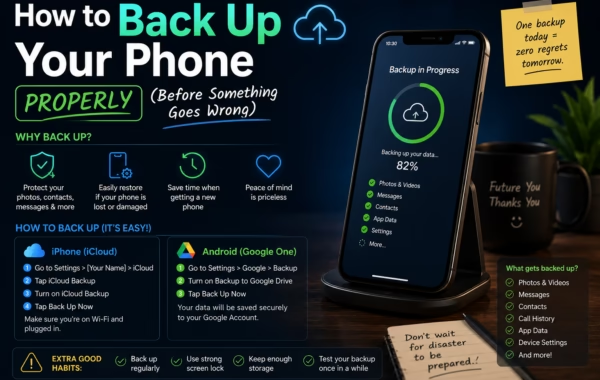
By Ken Hollow, the man who has watched three separate people lose years of photos because they assumed “it backs up automatically” without ever checking…