When Should You Actually Replace Your Phone? (The Honest Answer)
By Ken Hollow, the man who has been asked by a fox spirit to justify the continued existence of a phone that is, in her…
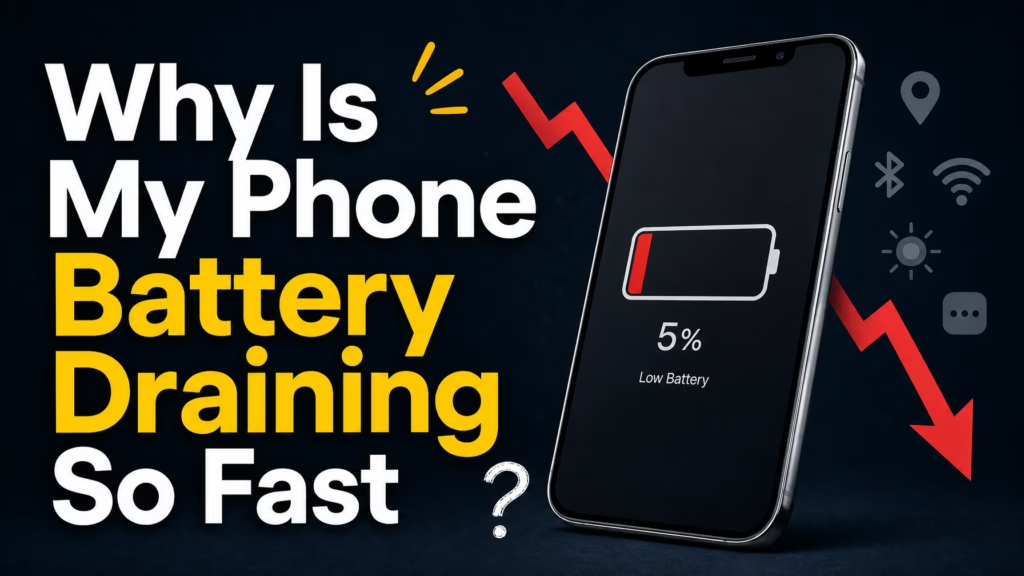
By Ken Hollow, the man whose client drains her phone battery by noon every single day and blames “the universe conspiring against her content”
It’s 11:47 AM and Nana’s phone is at 8%.
“Ken. It’s dying again. I charged it all night.”
“Nana, you have 14 apps running, screen brightness at maximum, your livestream was on for two hours, Bluetooth is on for no reason, and you’re connected to a WiFi network three buildings away.”
“So the universe IS conspiring against me.”
“No, Nana. Physics is.”
If your phone can’t make it through the day without hitting the charger, the problem is almost never a defective battery (unless your phone is several years old). It’s usually a combination of settings, apps, and habits that are quietly draining power in the background. Most of these are fixable in minutes.
Here are the real causes, in order of impact, and what to do about each one.
The biggest battery drains are screen brightness, background app activity, location services, push notifications, and poor signal strength. Start by checking your battery usage screen (Settings → Battery on both iPhone and Android) to see exactly what’s consuming the most power. Then lower brightness, restrict background app refresh for non-essential apps, turn off location access for apps that don’t need it, and disable Bluetooth/WiFi scanning when you’re not using them.
Before changing anything, look at the data. Both iPhone and Android tell you exactly which apps and services are consuming battery power.
On iPhone: Settings → Battery. Scroll down to see battery usage by app over the last 24 hours or 10 days. Tap “Show Activity” to see how much time each app spent on-screen vs. in the background.
On Android: Settings → Battery → Battery Usage (or “App Battery Usage” on some phones).
If one app is using a disproportionate amount of battery — say 30-40% on its own — that’s your problem. Either the app is misbehaving, needs an update, or is doing too much in the background. Sometimes the fix is as simple as force-closing and reopening a buggy app.
Your screen is the single biggest battery consumer on your phone. It can account for 30-50% of total battery usage depending on brightness and how often you use it.
If your brightness is set to maximum — or even consistently above 70% — you’re burning through battery much faster than necessary.
The fix: Turn on Auto-Brightness (iPhone: Settings → Accessibility → Display & Text Size → Auto-Brightness. Android: Settings → Display → Adaptive Brightness). This lets your phone adjust brightness based on your environment. In most indoor situations, 40-60% brightness is perfectly readable.
Also shorten your Screen Timeout — the time your phone waits before turning off the screen when idle. Set it to 30 seconds instead of 2 minutes. Those idle seconds add up over a full day.
Many apps continue working behind the scenes even when you’re not using them — refreshing feeds, syncing data, checking for notifications, downloading content. Social media apps are the worst offenders. Instagram, TikTok, Facebook, and Snapchat all refresh constantly by default.
On iPhone: Settings → General → Background App Refresh. Toggle it off entirely, or go through the list and disable it for individual apps that don’t need constant updates.
On Android: Settings → Apps → select the app → Battery → set to “Restricted” for non-essential apps.
You’ll still get notifications from these apps when they’re open. You’re just stopping them from burning CPU cycles in the background when you’re not looking at them.
“Ken turned off background refresh on 11 of my apps. My battery lasted until 4 PM for the first time in months. I’m furious I didn’t know about this sooner.”
GPS is power-hungry. When apps have permission to access your location “Always” — rather than “While Using” — your phone’s GPS hardware stays active in the background, constantly tracking where you are.
Most apps don’t need your location at all, and the ones that do (maps, ride-sharing, weather) only need it while you’re actually using them.
On iPhone: Settings → Privacy & Security → Location Services. Go through each app and change “Always” to “While Using the App” or “Never.” Be ruthless — does your flashlight app really need to know where you are?
On Android: Settings → Location → App Permissions. Same drill — switch apps to “Only while using” or “Don’t allow.”
Every push notification wakes your screen and your radio. If you’re getting notifications from dozens of apps throughout the day — news alerts, social media likes, game invitations, shopping promotions — each one costs a tiny bit of battery. Multiplied by hundreds of notifications per day, it’s significant.
The fix: Go to Settings → Notifications and disable notifications for any app that doesn’t genuinely need your immediate attention. Keep messaging, calls, and email. Disable promotional apps, games, and anything that sends “We miss you!” notifications.
This is the one people never think about. When your phone has weak cellular signal, it increases its radio power to maintain the connection. This extra power draw can drain your battery significantly faster than normal — sometimes 2-3x faster in areas with consistently poor reception.
You might notice this in specific locations: basement offices, certain rooms in your home, rural areas, or buildings with thick walls.
The fix: If you’re in an area with poor signal and have WiFi available, connect to WiFi and enable WiFi Calling (Settings → Phone → WiFi Calling on iPhone, or Settings → Connections → WiFi Calling on Android). This lets your phone make calls and send texts over WiFi instead of struggling with a weak cellular connection, saving significant battery.
If you’re in a location with no signal at all, switch to Airplane Mode to stop your phone from endlessly searching for a connection it won’t find.
Old versions of your operating system and apps can contain bugs that cause inefficient processing, memory leaks, and unnecessary battery drain. App developers regularly release updates that fix these issues.
The fix: Update your phone’s operating system (Settings → General → Software Update on iPhone, or Settings → System → Software Update on Android). Update all your apps through the App Store or Google Play Store.
Note: Right after a major OS update, your phone will often run warm and drain battery faster for 24-72 hours while it re-indexes files and optimizes in the background. This is normal and temporary — don’t panic if your battery seems worse right after updating. Give it a couple of days.
All lithium-ion batteries degrade over time. After about 500 full charge cycles (roughly 2-3 years of normal use), your battery retains around 80% of its original capacity. That means a phone that once lasted all day now runs out by mid-afternoon — even with identical usage.
On iPhone: Settings → Battery → Battery Health & Charging. If Maximum Capacity is below 80%, the battery is significantly degraded.
On Android: Some manufacturers include battery health info in Settings → Battery. Samsung has it under Settings → Battery and Device Care → Battery → Battery Usage → Battery Status. Third-party apps like AccuBattery can also estimate battery health.
The fix: If your battery health is below 80%, software fixes will only get you so far. A battery replacement is the real solution — Apple charges around $89-$99 depending on the model, and third-party repair shops are often cheaper. It’s dramatically more cost-effective than buying a new phone.
“My battery health said 74%. Ken said ‘that’s like running a marathon on a sprained ankle.’ I got the battery replaced. My phone now outlasts Ken’s. He’s not handling it well.”
If your battery started draining abnormally with no obvious cause — you haven’t changed your habits, no new apps, no recent updates — malware could be running hidden processes in the background. Cryptomining malware is particularly battery-intensive since it uses your processor constantly.
This is primarily an Android risk, especially if you’ve installed apps from outside the Google Play Store.
The fix: Check your battery usage screen for unfamiliar apps or processes consuming unusual power. Run a scan with a reputable security app. If you’ve sideloaded apps recently, uninstall them. For persistent problems, check our guide on checking if your accounts have been compromised — if your phone is infected, your accounts may be at risk too.
| ✅ Do This | ❌ Avoid This |
|---|---|
| Enable auto-brightness | Running brightness at 100% all day |
| Disable background refresh for non-essential apps | Leaving every app refreshing in the background |
| Set location to “While Using” for most apps | Giving every app “Always” location access |
| Connect to WiFi when available | Relying on weak cell signal when WiFi is nearby |
| Keep software updated | Ignoring OS and app updates for months |
| Use Low Power Mode when running low | Waiting until 5% to enable power saving |
| Get battery replaced when health drops below 80% | Expecting software fixes to compensate for a degraded battery |
Your phone battery drains fast because of screen brightness, background apps, location services, push notifications, poor signal, outdated software, battery degradation, or (rarely) malware. Start by checking Settings → Battery to see exactly what’s using the most power. Lower brightness, restrict background refresh, limit location access, and disable unnecessary notifications. If your battery health is below 80%, a replacement (~$89-99 for iPhones) is more effective than any settings tweak. And if your battery started draining suddenly for no clear reason, check for buggy apps or malware.
“I followed every step on this list. My phone now lasts until 9 PM. This is the longest my battery has survived since I discovered livestreaming. Ken is getting a thank-you card. Unsigned, obviously.”

Hi. I’m Ken. I run Two Second Solutions, a one-man agency that somehow landed a fox spirit influencer as a client. I drink too much coffee, blog when I need to vent, and regularly update my résumé just in case she sets the office on fire again. I’m not crying — it’s just spell residue.
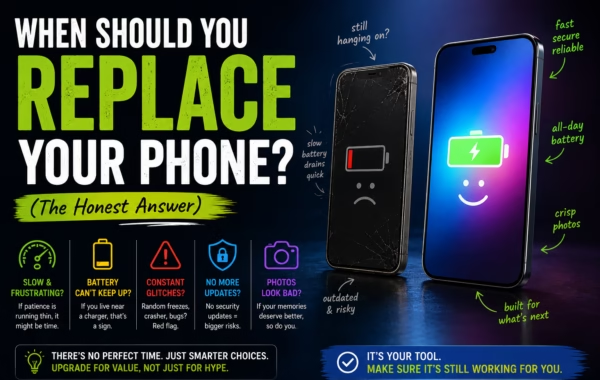
By Ken Hollow, the man who has been asked by a fox spirit to justify the continued existence of a phone that is, in her…
By Ken Hollow, the man who once watched a computer take eleven minutes to boot and seriously considered a career change “Ken. Your computer is…
By Ken Hollow, who was shown a storage bar with a large grey section and asked, with genuine suspicion, “what is the grey” “Ken. I…