Why Is My Computer So Slow? (And How to Fix It Without Buying a New One)
By Ken Hollow, the man who once watched a computer take eleven minutes to boot and seriously considered a career change “Ken. Your computer is…
By Ken Hollow, the man who once watched a fox spirit try to take a photo, get the “Storage Almost Full” warning, and blame it on “a digital curse”
Nana has 47 gigabytes of selfies. Forty-seven. That’s not a typo. That’s forty-seven thousand megabytes of a fox spirit posing in velvet from slightly different angles under slightly different lighting conditions. And she wonders why her phone is full.
“Ken, my phone says I have no storage. But I have 128 gigabytes! Where did they GO?”
“Nana, look at your Photos app.”
“…Those are all essential.”
If your iPhone keeps hitting you with the “Storage Almost Full” notification, you’re not alone — it’s one of the most common iPhone frustrations. The good news is that most storage problems are fixable in under 30 minutes without deleting anything you actually care about. Your phone is almost certainly full of stuff you don’t need and don’t even know is there.
Here’s how to find it and clear it, starting with the quickest wins.
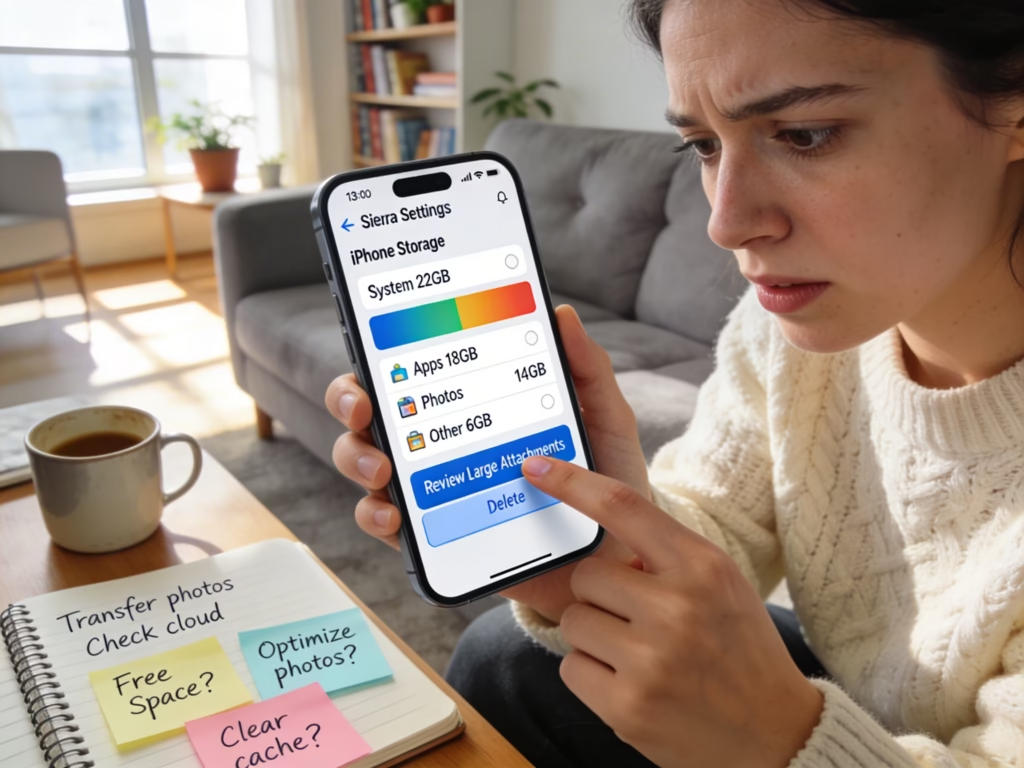
Go to Settings → General → iPhone Storage. Wait a moment for it to load. You’ll see a color-coded bar showing exactly what’s eating your space — Photos, Apps, Messages, System Data, etc. — plus a list of every app sorted by size. This tells you exactly where to focus. Don’t start randomly deleting things until you’ve looked at this screen.
When you delete photos or videos on your iPhone, they don’t actually disappear. They go to a “Recently Deleted” album where they sit for 30 days before being permanently removed. During that time, they still take up storage.
Open Photos → Albums → scroll to the bottom → Recently Deleted. If there are items in there, tap Select → Delete All. You might recover several gigabytes instantly just from this one step.
The same applies to deleted notes (Notes app → Recently Deleted), deleted voice memos, and deleted files in the Files app. Check all of them.
Safari accumulates website data, cached pages, and browsing history over time. If you’ve never cleared it, this can be hundreds of megabytes.
Go to Settings → Safari → Clear History and Website Data. This won’t delete your saved passwords or bookmarks — just cached files and browsing history. It’s safe and often frees up a surprising amount of space.
Your Messages app silently hoards every photo, video, GIF, and voice memo anyone has ever sent you. Over months and years, this adds up to gigabytes of data you’ve probably forgotten about.
Go to Settings → General → iPhone Storage → Messages. You’ll see a breakdown: Photos, Videos, GIFs and Stickers, Other. Tap into each category, hit Edit, select the large items you don’t need, and delete them.
You can also set messages to auto-delete after a period: Settings → Messages → Message History → Keep Messages and change it from “Forever” to “1 Year” or “30 Days.” This prevents the buildup from happening again.
“Ken found 6 gigabytes of raccoon GIFs in my Messages app. Six. He asked me who sends me that many raccoon GIFs. I declined to answer.”
Photos and videos are almost always the largest storage consumer on any iPhone. A single 4K video can be over 400 MB. Thousands of photos stack up to tens of gigabytes. This is where the real space is hiding.
You have a few options, and they’re not mutually exclusive:
This is Apple’s built-in solution and it works well. When enabled, your iPhone keeps small, compressed previews of your photos locally and stores the full-resolution originals in iCloud (the cloud). When you open a photo, the full version downloads on demand.
Go to Settings → Photos → toggle on iCloud Photos, then select Optimize iPhone Storage.
The catch: Apple gives you only 5 GB of free iCloud storage, which fills up fast. You’ll almost certainly need to upgrade — 50 GB costs $0.99/month, 200 GB costs $2.99/month. It’s one of the cheapest and most effective storage solutions available.
iOS has a built-in duplicate detection feature. Go to Photos → Albums → scroll down to Utilities → Duplicates. If duplicates are found, you can merge them with a tap — the best version is kept and the rest go to Recently Deleted.
This feature alone can free up hundreds of megabytes to several gigabytes depending on how many duplicate shots you’ve accumulated.
Go to Photos → Albums → Videos. Sort through and delete videos you no longer need — especially long recordings, screen captures, and those accidental pocket videos that are 45 minutes of darkness. Videos are the single biggest space hog per file.
After deleting, remember to empty the Recently Deleted album (Quick Win #1) to actually reclaim the space.
This is one of the smartest features iOS offers. “Offloading” removes the app itself from your phone but keeps all of its data. The app icon stays on your home screen with a small cloud symbol. When you tap it, the app reinstalls and all your data is right where you left it.
Go to Settings → General → iPhone Storage. Scroll through the list of apps sorted by size. Tap any app you haven’t used in months and select Offload App.
To automate this: Settings → App Store → toggle on Offload Unused Apps. iOS will automatically offload apps you haven’t opened in a while, freeing up space without you having to think about it.
This is different from deleting an app. Deleting removes the app AND its data. Offloading removes only the app and preserves your data. If a game has save progress you don’t want to lose, offload it rather than delete it.
Many apps store cached data that grows over time — offline content, saved media, temporary files. Social media apps are the worst offenders.
Go to Settings → General → iPhone Storage and look at the list. If apps like Instagram, TikTok, Snapchat, or Spotify show large storage sizes despite being apps you don’t download much content from, their caches are bloated.
Unfortunately, iOS doesn’t have a universal “clear cache” button for all apps. Your options:
For Safari: Settings → Safari → Clear History and Website Data (covered above).
For apps with built-in cache settings: Some apps (like TikTok and Snapchat) have a “Clear Cache” option in their in-app settings. Check under the app’s settings or storage menu.
For everything else: The nuclear option is to delete the app and reinstall it from the App Store. This clears all cached data. You’ll need to log in again, but you’ll reclaim all that cache space. This is especially effective for Instagram and Facebook, which can accumulate gigabytes of cached data.
“Instagram was using 4.2 GB of storage. The app itself is about 250 MB. Ken says the rest is ‘cached data from my obsessive scrolling.’ I prefer the term ‘content research.'”
If you’ve downloaded movies, shows, music, or podcasts for offline use and forgotten about them, they’re silently occupying gigabytes of space.
Netflix: Open the app → tap your profile → Downloads → Edit → delete anything you’ve already watched.
Spotify: Go to Settings → Storage → Clear Cache. Also check your downloaded playlists — each one stores offline copies of every track.
Apple Music / Podcasts: Settings → General → iPhone Storage → Music / Podcasts. You’ll see exactly how much downloaded media is stored. Delete what you don’t need offline.
YouTube: Open the app → Library → Downloads → delete completed downloads.
This is a common culprit for people who download content before flights or trips and never clean up afterward.
If you look at your iPhone Storage screen and see a large category called “System Data” (or “Other” on older iOS versions), you might wonder what it is and why it’s so big.
System Data includes caches, logs, temporary files, Siri voices, update files, and other system-level data. Apple doesn’t give you a single button to clear it, which is frustrating.
The most effective ways to reduce it:
Restart your iPhone. A simple reboot clears some temporary caches and system files. It’s the easiest first step.
Clear Safari and app caches (covered above). Much of “System Data” is actually cached content from apps and browsers.
Update to the latest iOS. Sometimes System Data bloats because of failed or incomplete updates. Installing the latest update can clean up leftover update files.
Last resort: back up and restore. If System Data is enormous (10+ GB) and nothing else reduces it, backing up your iPhone to a computer or iCloud and then doing a factory reset and restore typically clears it. This is the most time-consuming option but the most thorough.
Once you’ve freed up space, a few habits keep it from filling up again:
Enable iCloud Photos with Optimize Storage — this keeps full-resolution photos in the cloud and small versions on your phone. It’s the single best long-term storage management tool.
Enable Offload Unused Apps — lets iOS automatically manage app storage for you.
Set Messages to auto-delete — 1 year or 30 days, depending on your needs.
Review downloaded content monthly — take 5 minutes to clear Netflix downloads, Spotify offline playlists, and podcast episodes you’ve finished.
Shoot video in 1080p instead of 4K — unless you have a specific reason for 4K, 1080p looks nearly identical on a phone screen and uses roughly a quarter of the storage. Change it in Settings → Camera → Record Video.
“Ken suggested I shoot in 1080p instead of 4K. I told him my content deserves maximum resolution. He said ‘your content is selfies with a velvet filter.’ He’s sleeping on the couch.”
Start by checking what’s using your storage: Settings → General → iPhone Storage. Empty the Recently Deleted album in Photos (instant space). Clear Safari data. Delete old message attachments. Deal with your photo and video library — either enable iCloud Photos with Optimize Storage, delete duplicates, or remove old videos. Offload unused apps. Clear app caches by reinstalling bloated apps. Delete forgotten downloads from streaming apps. For System Data, restart your phone and clear caches. To prevent it from happening again, enable iCloud Photos, set Offload Unused Apps to automatic, and review downloaded content monthly.

Hi. I’m Ken. I run Two Second Solutions, a one-man agency that somehow landed a fox spirit influencer as a client. I drink too much coffee, blog when I need to vent, and regularly update my résumé just in case she sets the office on fire again. I’m not crying — it’s just spell residue.

By Ken Hollow, the man who once watched a computer take eleven minutes to boot and seriously considered a career change “Ken. Your computer is…

By Ken Hollow, unpaid thermal engineer for a fox spirit who treats her phone like a portable fireplace Nana livestreams for four hours straight. No…
By Ken Hollow, the man who once found a phone charging under a pillow at 3am and had to explain the concept of “thermal runaway”…