How to Free Up Storage on iPhone (Without Deleting Everything You Love)
By Ken Hollow, the man who once watched a fox spirit try to take a photo, get the “Storage Almost Full” warning, and blame it…
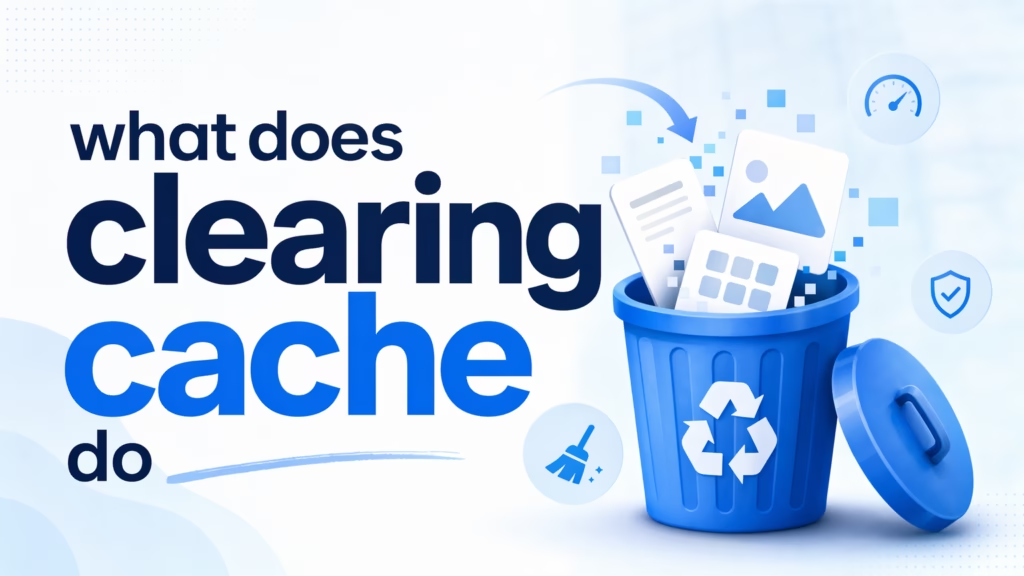
By Ken Hollow, the man who once watched a fox spirit stare at the words “Clear Cache” for thirty seconds and then whisper, “Is it like a spell that erases memories? Because I know a MUCH faster way to do that.”
She wasn’t joking. She started drawing a sigil on the kitchen table. I closed the laptop.
If you’ve ever been told to “clear your cache” and nodded along while having absolutely no idea what that means, welcome. You’re in the right place. This is one of those tech phrases that sounds like it should require a degree to understand, but it really doesn’t.
Cache (pronounced “cash”) is temporary data your phone stores so apps and websites load faster next time. Clearing it deletes that temporary data. It won’t delete your photos, passwords, messages, or apps. It’s completely safe, and it can fix weird app glitches and free up a small amount of storage.
Every time you open an app or visit a website, your phone downloads stuff — images, layout files, scripts, fonts. Loading all of that from scratch every single time would be slow, so your phone saves copies of it locally. That local copy is the cache.
Think of it like this: you visit a coffee shop every morning. Instead of reading the entire menu from scratch each time, you remember your usual order. The cache is your brain remembering the menu. It makes everything faster.
The problem is that over time, this cached data piles up. Old versions stick around. Some of it becomes outdated or corrupted. And occasionally, that stale data is exactly why an app starts behaving strangely — freezing, showing old content, or refusing to load properly.
“So my phone is hoarding memories of every website I’ve ever visited? That’s not efficiency, Ken. That’s emotional baggage.”
This is the part people worry about, so let me be specific. Clearing the cache deletes temporary files — things like image thumbnails, website data, app layout files, and other behind-the-scenes stuff your phone stored to speed things up.
Here’s what it does and doesn’t touch:
| ✅ Gets Deleted (Cache) | ❌ Does NOT Get Deleted |
|---|---|
| Temporary images and files from websites | Your photos, videos, and downloads |
| App layout data and thumbnails | Your saved passwords and login info |
| Old or stale versions of web content | Your messages, contacts, and call history |
| Temporary login sessions (you may need to log in again) | Your apps — nothing gets uninstalled |
| Locally stored search suggestions | Your app settings, preferences, and game progress |
The only mild inconvenience: some apps and websites will load slightly slower the first time you open them after clearing cache, because they have to re-download those temporary files. After that first load, the cache rebuilds itself and everything’s fast again.
You also might get logged out of some apps or websites. Your saved passwords stay in your password manager or browser — you’ll just need to re-enter them once.
You don’t need to do this obsessively. Clearing cache once every month or two is fine for general maintenance. But there are specific situations where it’s the right first move:
An app is acting weird. If an app keeps crashing, freezing, showing old content, or refusing to load something you know should be there — clear its cache before doing anything drastic. This fixes the problem more often than people expect.
Your phone is running low on storage. Cache can quietly eat up several gigabytes over time. If you’re getting the dreaded “Storage Almost Full” warning, clearing cache across your apps is a quick way to claw back space without deleting anything you care about. For more aggressive storage recovery, check out our guide on how to free up storage on iPhone.
A website looks broken or outdated. If a website looks wrong in your browser — old layout, missing images, things clearly not displaying correctly — your browser might be loading a stale cached version. Clearing the browser cache forces it to download a fresh copy.
You’ve been troubleshooting something and nothing else worked. “Clear your cache” is tech support’s version of “turn it off and on again.” It’s not a magic fix, but it eliminates one of the most common causes of app and browser weirdness.
“I cleared the cache on Instagram and it felt like a spiritual cleanse. Everything loaded fresh. The vibes were immaculate. I’m going to start doing this every full moon.”
On Android: Go to Settings → Apps → select the app → Storage → Clear Cache. To clear cache for all apps at once, go to Settings → Storage → Cached Data (though this option isn’t available on all Android versions anymore).
On iPhone: iOS doesn’t have a universal “clear cache” button for all apps. For Safari, go to Settings → Safari → Clear History and Website Data. For individual apps, you usually need to delete and reinstall the app — which clears its cache along with it. Some apps (like Spotify, TikTok, Slack) have a “Clear Cache” option in their own settings menu.
For your browser specifically: Open Chrome, Firefox, or whatever browser you use → Settings → Privacy → Clear Browsing Data. Make sure you select “Cached images and files” and leave “Passwords” unchecked unless you want to wipe those too.
This is the one mistake worth warning about. On Android, when you go into an app’s storage settings, you’ll see two options: “Clear Cache” and “Clear Data” (sometimes called “Clear Storage”).
Clear Cache is safe. It removes temporary files, as described above.
Clear Data is a full reset of the app. It wipes everything — your login, your settings, your preferences, your progress. It returns the app to the state it was in when you first installed it. This is useful as a last resort, but it’s not the same thing as clearing cache.
Don’t hit “Clear Data” when you meant to hit “Clear Cache.” Nana did this to her K-drama streaming app and lost her entire watchlist. I still hear about it weekly.
“FIFTY-THREE episodes of carefully curated watch history. Gone. Because one button said ‘cache’ and the other said ‘data’ and apparently those are DIFFERENT THINGS? The interface should have warned me. With sirens. And possibly a blood oath.”
Cache is temporary data your phone stores so apps and websites load faster. Clearing it deletes that temporary data — not your photos, passwords, messages, or apps. It’s safe, it can fix app glitches, and it frees up a bit of storage. Do it every month or two, or whenever an app starts acting up. Just don’t confuse “Clear Cache” with “Clear Data” on Android — Clear Data nukes everything and resets the app completely.

Hi. I’m Ken. I run Two Second Solutions, a one-man agency that somehow landed a fox spirit influencer as a client. I drink too much coffee, blog when I need to vent, and regularly update my résumé just in case she sets the office on fire again. I’m not crying — it’s just spell residue.
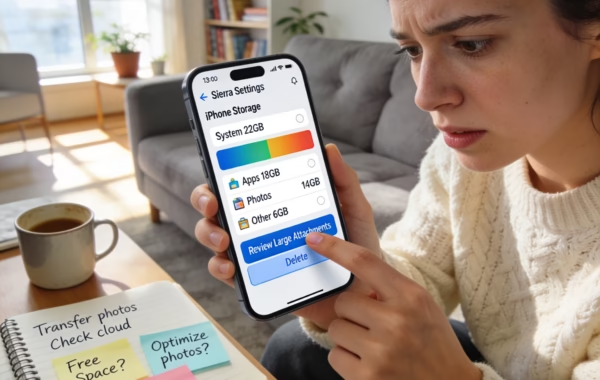
By Ken Hollow, the man who once watched a fox spirit try to take a photo, get the “Storage Almost Full” warning, and blame it…
By Ken Hollow, who enabled a battery setting and then spent three weeks being told the phone was “broken on purpose, by you” “Ken. My…

By Ken Hollow, the man who had to explain to a fox spirit why having 47 browser tabs open makes the computer “forget how to…