iCloud vs. Google Drive vs. Dropbox – What’s the Difference?
By Ken Hollow, the man who discovered that a fox spirit has been storing the same photos in three different cloud services simultaneously “for safety”…
By Ken Hollow, the man who discovered that a fox spirit has been “backing up” her photos by emailing them to herself since 2019
“Nana. How do you back up your photos?”
“I email them to myself.”
“…All of them?”
“The important ones. I have a folder called ‘photos backup’ in my email.”
“That’s not a backup. That’s just photos in a different place.”
“They’re safe.”
“Until your email account gets deleted, hacked, or hits its storage limit.”
She looked at her phone. Then at me. Then back at her phone.
“How does one actually back things up.”
This is a more common question than people admit, because most people have a vague sense that their files should be backed up somewhere without ever doing it properly. Here’s the honest answer — and why it involves both a hard drive and the cloud.
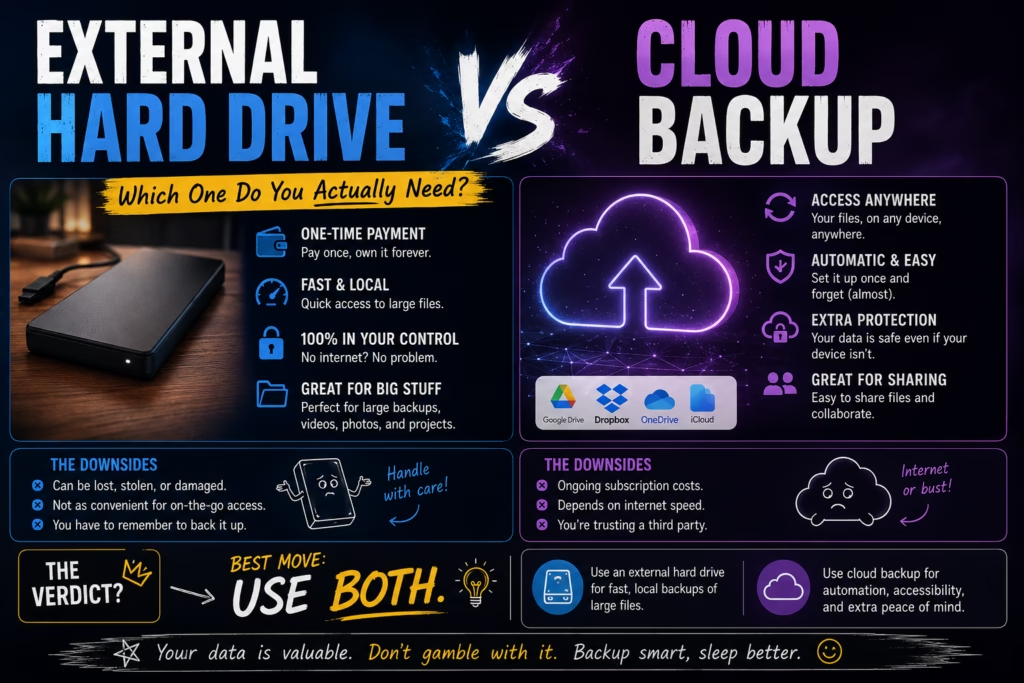
External hard drives and cloud backup protect against different threats. An external drive protects you if your computer fails — but not if your house burns down or the drive itself fails. Cloud backup protects you from physical disasters and device theft — but not if your internet is down or your cloud account gets compromised. The professional standard is both: a local copy on an external drive and a cloud copy offsite. For photos and documents on a phone, cloud backup alone is usually sufficient.
External hard drive protects you from:
Computer failure, accidental deletion, corrupted files, ransomware (if the drive was disconnected when the attack happened), upgrading to a new computer.
External hard drive does NOT protect you from:
Fire, flood, theft (if the drive is in the same location as the computer), the drive itself failing (hard drives fail — they’re mechanical or electronic devices with a finite lifespan), forgetting to plug it in and run the backup.
Cloud backup protects you from:
Physical disasters (fire, flood), theft, computer failure, hard drive failure — because the copy is geographically separate from your home.
Cloud backup does NOT protect you from:
Ransomware that syncs the encrypted files to the cloud before you notice (some cloud services have version history that helps here), accidental deletion that syncs immediately, your cloud account being compromised, the cloud service shutting down or changing its terms.
“So a hard drive fails if the house burns down, and the cloud fails if someone hacks my account. They fail in different ways.” — Exactly. Which is why the answer to “which one” is almost always “both — because they protect against different things.” “My email backup system fails in all the ways simultaneously.” Yes. We’re going to fix that today.
Anyone who works in IT or data management lives by the 3-2-1 backup rule. It’s the simplest framework for making sure your data is actually safe:
3 copies of your data (original + 2 backups)
2 different storage types (e.g., internal drive + external drive, or computer + cloud)
1 copy kept offsite (cloud, or a drive at a different physical location)
In practice for most people: your files live on your computer (copy 1), backed up to an external hard drive at home (copy 2, different storage type), and backed up to cloud storage (copy 3, offsite). If any single thing fails — your computer, your drive, your house — you still have two other copies.
HDD vs SSD: Traditional hard drives (HDDs) are cheaper per gigabyte — good for large backups on a budget. SSDs are faster, more durable (no moving parts), and better for drives you carry around, but more expensive. For a backup drive that sits on a desk, an HDD is fine. We cover the full HDD vs SSD comparison here.
How big? Get at least twice the size of the storage in your computer. If you have a 512GB laptop, get a 1TB or 2TB drive. Storage is cheap — running out of backup space is annoying.
The reliability catch: External drives fail. They’re not permanent. The average lifespan is 3-5 years for HDDs, longer for SSDs. Treat them as a backup, not as the only copy. And actually plug the thing in regularly — a backup drive that hasn’t been connected in six months hasn’t backed up anything in six months.
Backup software: On Mac, Time Machine is built in and excellent — plug in a drive and it backs up automatically. On Windows, File History does the same job. Set it up once and let it run.
Cloud backup and cloud sync are different things — an important distinction. Cloud sync (iCloud, Google Drive, Dropbox) keeps files identical across your devices. If you delete a file, it deletes everywhere. Cloud backup keeps a separate, protected copy — some services maintain version history so you can recover a file from before it was deleted or corrupted.
Dedicated cloud backup services (Backblaze, Carbonite, iDrive) automatically back up everything on your computer to the cloud, continuously, with version history. Backblaze is the most recommended for individuals — around $99/year for unlimited storage on one computer. Worth it if you have a lot of irreplaceable files.
For photos specifically: iCloud Photos (iPhone users) or Google Photos (any device) is sufficient for phone photo backup. They run automatically, and Google Photos especially has excellent version history and organisation. This is genuinely good enough for most people’s photo backup needs without a separate service.
For a home computer with important files: Time Machine or File History to an external drive + Backblaze or iDrive for cloud backup. ~$99/year total. Fully automated once set up.
For photos on an iPhone: iCloud Photos or Google Photos, auto-enabled. That’s it. The cloud handles it.
For photos on Android: Google Photos with backup enabled. Done.
For Nana’s email backup system: We set up Google Photos (she uses an iPhone but prefers Google’s organisation), enabled iCloud as a secondary for the 3-2-1 redundancy, and moved the important documents to Google Drive. The email folder has been retired.
“I had four years of photos one email account compromise away from being gone forever.” — Yes. “And it took fifteen minutes to fix.” Also yes. “I’m choosing not to think about the four years part.” Wise. The photos are safe now. That’s what matters.
External drives and cloud backup protect against different failures — use both for full coverage (the 3-2-1 rule: 3 copies, 2 storage types, 1 offsite). External drives protect against device failure but not physical disasters or drive failure itself; cloud backup protects against physical disasters but not account compromise or immediate sync of corrupted files. For a home computer: an external drive with Time Machine (Mac) or File History (Windows) plus a cloud backup service like Backblaze (~$99/year) covers you completely. For phone photos: iCloud Photos or Google Photos with backup enabled is sufficient. External drives fail after 3-5 years — treat them as a backup, not the only copy, and actually keep them connected and running.

Hi. I’m Ken. I run Two Second Solutions, a one-man agency that somehow landed a fox spirit influencer as a client. I drink too much coffee, blog when I need to vent, and regularly update my résumé just in case she sets the office on fire again. I’m not crying — it’s just spell residue.
By Ken Hollow, the man who discovered that a fox spirit has been storing the same photos in three different cloud services simultaneously “for safety”…
By Ken Hollow, the man who replaced a hard drive and was treated like a wizard for making a computer boot in 15 seconds I…

By Ken Hollow, the man who had to explain to a fox spirit that her photos don’t literally float above the earth I knew this…