2.4 GHz vs 5 GHz WiFi: What’s the Difference and Which Should You Use?
By Ken Hollow, the man who had to explain radio frequencies to someone who thinks GHz stands for “Gigantic Hertz of Sorcery” Nana was furious.…
By Ken Hollow, the man whose fox spirit roommate has declared the upstairs hallway “the dead zone” and refuses to take calls there on principle
“Ken. The internet doesn’t work in the hallway.”
“It works. It’s just slow up there.”
“I streamed one video and it buffered eleven times. That’s not ‘just slow.’ That’s broken.”
“It’s a signal issue. The router is downstairs.”
“Then move the router upstairs.”
“Then it’ll be slow downstairs.”
She stared at me for a long moment. “So the internet has a favorite room.” Yes. The internet has a favorite room. Here’s why, and what you can actually do about it.
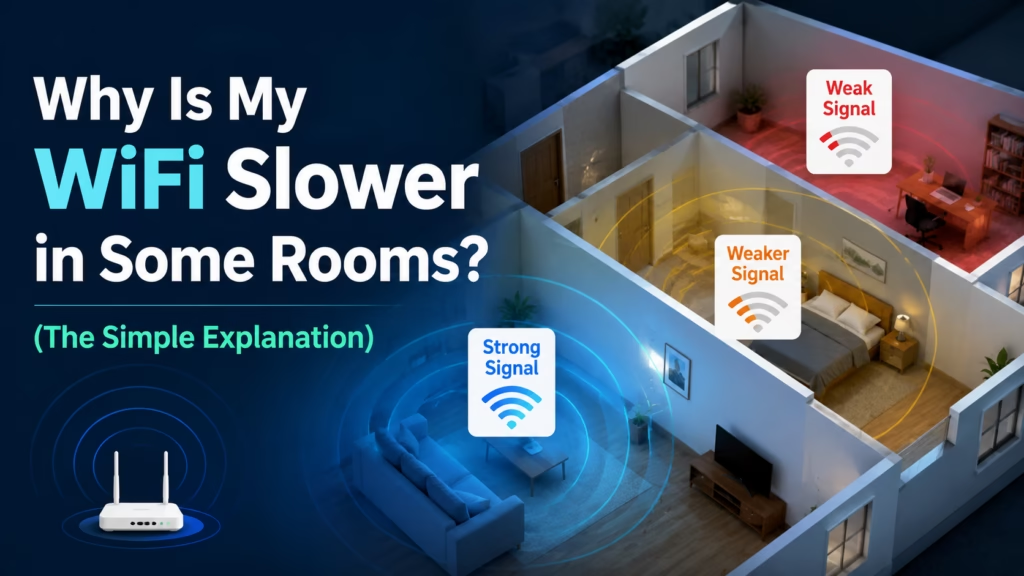
WiFi signals weaken as they travel through walls, floors, and obstacles. The further you are from your router – and the more barriers between you – the weaker the signal. Thick walls, appliances, and distance all degrade performance. The fix depends on your home’s layout: repositioning your router helps a lot, and a mesh network or WiFi extender can eliminate dead zones entirely.
WiFi transmits data via radio waves – the same basic physics as FM radio or Bluetooth. Radio signals lose strength as they travel (this is called signal attenuation), and they weaken further when they pass through solid materials.
Different materials affect WiFi differently:
Worst for WiFi: Concrete and brick walls (very dense, absorbs signals heavily), metal (reflects and scatters signals), mirrors, and water. A fish tank between you and your router is genuinely bad for signal.
Moderately bad: Plaster walls, ceramic tile, thick hardwood floors, large appliances.
Manageable: Standard drywall (most modern interior walls), wood furniture, glass.
Every wall, floor, or obstacle the signal passes through costs you speed and reliability. A router in the basement needs to punch through a concrete floor and two sets of drywall to reach an upstairs bedroom – by the time it gets there, the signal is significantly degraded.
“So the WiFi is essentially shouting from the living room and by the time it reaches the hallway it’s whispering?” – That’s an accurate model. The router shouts. Distance and walls make it quieter. “And I’m sitting in the hallway trying to hear a whisper.” Exactly.
Most modern routers broadcast on two frequencies – 2.4 GHz and 5 GHz – and your device automatically chooses one. Understanding the difference explains a lot of “why is it slow here” situations.
5 GHz: Faster speeds, but shorter range and worse at passing through walls. Ideal when you’re close to the router.
2.4 GHz: Slower speeds, but travels further and penetrates walls better. Better for distant rooms.
The problem: many devices prefer 5 GHz because it’s faster – but if you’re in a far room, the 5 GHz signal is barely reaching you, and you’d actually get better real-world performance on 2.4 GHz. Your device doesn’t always switch automatically when you’re on the edge of 5 GHz range.
We go deeper on this in our guide to 2.4 GHz vs. 5 GHz – the short version: if you’re far from your router, try manually connecting to your network’s 2.4 GHz band and see if it improves.
Before buying anything, try moving your router. Most people put their router wherever the cable comes into the house – a corner, a closet, against an outside wall. That’s usually the worst possible position for whole-home coverage.
Where to put your router for best coverage:
Center of the home. A router broadcasts in all directions. Placing it in the center of your home minimizes the maximum distance to any room.
Elevated position. Signals radiate outward and downward. A router on a shelf or table performs better than one on the floor or inside a cabinet.
Open space, not a closet. Routers stuffed in closets behind other objects are fighting extra obstacles before the signal even leaves the room.
Away from other electronics. Microwaves, baby monitors, and cordless phones all operate on 2.4 GHz and can cause interference.
Simply moving your router from a corner of the house to a central location can dramatically improve signal in previously weak areas – sometimes better than any device you could buy.
If repositioning your router doesn’t solve it – large homes, thick walls, multiple floors – you need hardware help.
| Feature | WiFi Extender / Repeater | Mesh Network |
|---|---|---|
| How it works | Receives your router’s signal and rebroadcasts it | Multiple nodes that act as one unified network |
| Setup | Simple – plug in and configure | More involved – replace existing router |
| Performance | Can halve speeds (it’s receiving and rebroadcasting simultaneously) | Much better – nodes communicate on a dedicated backhaul channel |
| Roaming | Creates a separate network name – you switch manually | Seamless – one network name, auto-connects to strongest node |
| Cost | $20-$60 for a single extender | $150-$400+ for a full system |
| Best for | Small fixes, budget-conscious, one problem room | Whole-home coverage, multiple floors, large homes |
The honest advice: Extenders are cheap and work fine for a single weak area. Mesh networks are significantly better but cost more. If dead zones are throughout your home, a mesh system like Google Nest WiFi, Eero, or TP-Link Deco is worth the investment – it’s the closest thing to having a perfect router in every room.
“So a WiFi extender is a relay runner that gets tired halfway through, and a mesh network is a relay team that passes the baton perfectly?” – I’ve never explained mesh networking that cleanly in my life. She’s better at this than I am. “I know.” She does know.
Before spending money, try these in order:
1. Restart your router – unplug it for 30 seconds, plug it back in. Fixes more than it should.
2. Move the router to a more central, elevated, open location.
3. Check which band you’re on – if your network has both 2.4 GHz and 5 GHz options visible, try the 2.4 GHz one from a distant room.
4. Check for interference – move the router away from microwaves, cordless phones, and baby monitors.
5. Check for general WiFi slowness first – if your WiFi is slow everywhere, room-specific fixes won’t help; the overall connection needs attention.
WiFi weakens with distance and through walls, floors, and dense materials like concrete and metal. The 5 GHz band is faster but shorter-range; 2.4 GHz is slower but travels further and through obstacles better – distant rooms may perform better on 2.4 GHz. The biggest free fix is moving your router to a central, elevated, open location. If that’s not enough, a WiFi extender ($20-60) handles one problem area cheaply; a mesh network ($150-400+) delivers seamless whole-home coverage and is worth it for large or multi-story homes.

Hi. I’m Ken. I run Two Second Solutions, a one-man agency that somehow landed a fox spirit influencer as a client. I drink too much coffee, blog when I need to vent, and regularly update my résumé just in case she sets the office on fire again. I’m not crying — it’s just spell residue.

By Ken Hollow, the man who had to explain radio frequencies to someone who thinks GHz stands for “Gigantic Hertz of Sorcery” Nana was furious.…

By Ken Hollow, who has been asked to justify a purchase to a fox spirit who does not pay for anything and yet has extremely…

By Ken Hollow, who has measured a flat with a phone app while a fox spirit followed him narrating the readings incorrectly “Ken. I want…