What Is a Guest WiFi Network? (And Should You Have One?)
By Ken Hollow, the man who gave his WiFi password to a visiting relative in 2022 and discovered three months later that they had shared…
By Ken Hollow, the man who has paused more K-dramas at the worst possible moment than any human alive
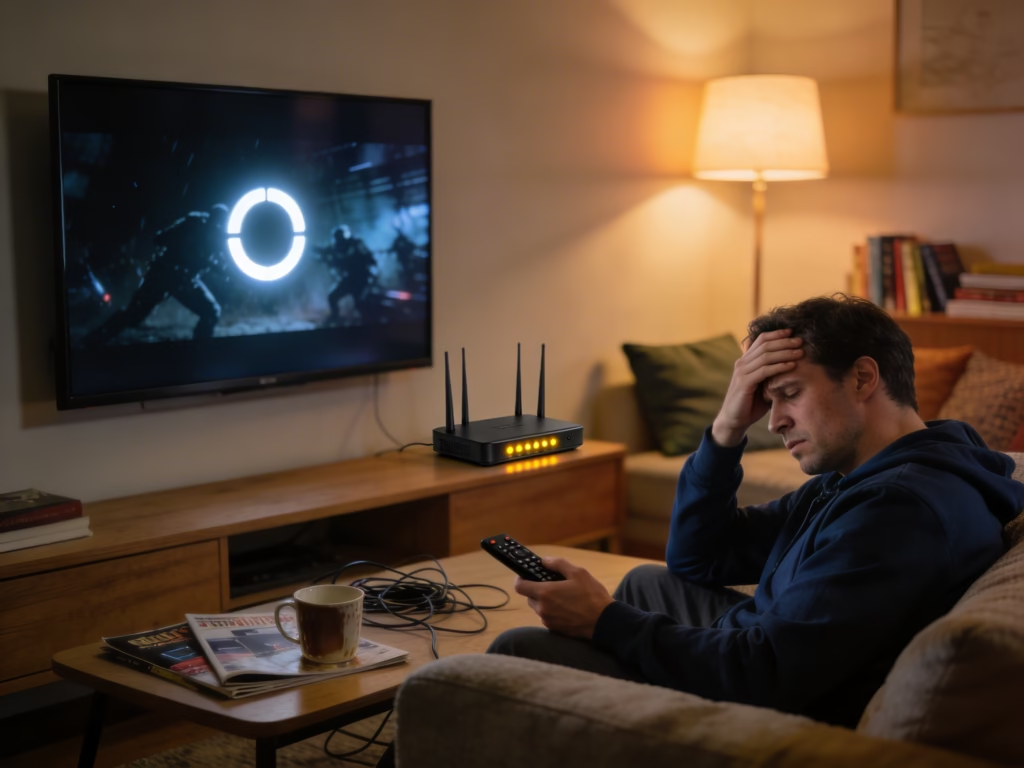
The scream could be heard from two rooms away.
“KEEEENNNN. It’s doing the circle. THE CIRCLE, KEN. Right when he was about to confess his love!”
The spinning buffering wheel. The enemy of every binge-watcher. The destroyer of dramatic timing. Nana’s stream had frozen at the exact moment the male lead took the female lead’s hands, looked into her eyes, and — buffering.
If your Netflix, YouTube, Disney+, or any other streaming service regularly pauses to load, stutters mid-scene, or drops to potato quality at the worst moments, the problem is almost never the streaming service itself. It’s usually something between your router and your screen — and most of the fixes are quick and free.
Here’s what to check, in the order most likely to solve it.
Streaming buffers when your internet connection can’t deliver data fast enough to keep up with playback. The most common causes are slow WiFi, too many devices on your network, being too far from the router, peak-hour congestion from your ISP, or streaming in a quality your connection can’t sustain. Start by restarting your router, then lower the video quality, then check what else is using your network.
I know. Everyone says this. But it fixes the problem more often than anything else on this list, and it takes 30 seconds.
Unplug your router from the wall. Wait 30 seconds (this actually matters — it gives the hardware time to fully reset its memory). Plug it back in. Wait about two minutes for it to fully reconnect.
Routers are small computers that run continuously. Over time, they accumulate temporary data, connections pile up, and performance degrades. A restart clears all of that and gives you a fresh connection to your ISP. If you haven’t restarted your router in weeks or months, this alone might fix your buffering immediately.
“Ken’s solution to every problem is ‘turn it off and on again.’ I told him that’s also my strategy for bad relationships. He didn’t laugh.”
Streaming in 4K requires around 25 Mbps of sustained download speed. HD (1080p) needs about 5-10 Mbps. Standard definition needs about 3 Mbps. If your connection can’t maintain the speed required for the quality you’re watching, the service has to pause and buffer more data before it can continue playing.
The quickest way to stop buffering right now — without changing anything about your network — is to lower the streaming quality.
On Netflix: Go to your account settings on the website → Profile & Parental Controls → Playback Settings → set Data Usage Per Screen to “Medium” or “Low” instead of “Auto” or “High.”
On YouTube: Click the gear icon on the video player → Quality → select 720p or 480p instead of 1080p or higher.
On Disney+, Prime Video, etc.: Similar settings exist in each app’s playback or video quality menu.
Dropping from 4K to 1080p is barely noticeable on most TV screens. Dropping from 1080p to 720p is slightly visible but still perfectly watchable. Either is vastly preferable to constant buffering interruptions.
Every device on your WiFi network shares the same bandwidth. If someone else in the house is on a video call, another person is gaming, a phone is uploading a cloud backup, and Windows is downloading a system update — all while you’re trying to stream — there simply isn’t enough bandwidth to go around.
This is the most common cause of buffering in multi-person households, and it’s easy to overlook because you can’t see what other devices are doing.
The fix: Check your router’s admin page or app to see how many devices are connected and which ones are using the most data. Pause or disconnect anything non-essential. If this is a recurring problem, it’s a sign your internet plan might not be fast enough for your household’s actual usage — especially if you have more than four or five active devices.
If your streaming device is far from your router — especially separated by walls, floors, or large furniture — the WiFi signal reaching it might be too weak for smooth streaming.
WiFi signal strength drops with distance and obstacles. A TV in the living room two walls away from the router might get half the speed (or less) compared to a phone sitting right next to it.
Quick fixes: Move the router to a more central location if possible. If your router broadcasts both 2.4 GHz and 5 GHz, make sure your streaming device is connected to 5 GHz if it’s in the same room or nearby — 5 GHz is faster and less congested. If the device is far from the router and 5 GHz can’t reach, 2.4 GHz with a good signal is better than 5 GHz with a weak one.
For a more permanent fix, a mesh WiFi system places multiple access points around your home so you get strong signal everywhere. It’s the best solution for larger homes where one router can’t cover every room.
“Ken told me to ‘move closer to the router.’ I told him to move the router closer to me. Ken moved the router. Ken learns.”
This is the fix nobody wants to hear and the one that works the best. An ethernet cable plugged directly from your router into your streaming device (smart TV, game console, streaming stick with an ethernet adapter) gives you a faster, more stable connection than any WiFi setup.
WiFi is convenient, but it’s inherently variable — signal strength fluctuates, interference comes and goes, and multiple devices compete for the same wireless channel. A wired connection eliminates all of that. It’s consistent, reliable, and almost always faster.
If your TV is too far from the router for a cable, powerline adapters are an alternative — they use your home’s electrical wiring to carry network data from one room to another. They’re not as fast as a direct ethernet cable but they’re more stable than WiFi over long distances.
If your streaming buffers consistently during evening hours (roughly 7-11 PM) but works fine at other times, there are two possible explanations.
The first is simple network congestion — everyone in your area is online at the same time, and the shared infrastructure can’t keep up. This is common with cable internet.
The second is ISP throttling — where your internet provider intentionally slows down specific types of traffic (like streaming video) during peak hours. Some ISPs do this to manage network load. It’s not always transparent.
How to test for throttling: Run a speed test at fast.com (which is owned by Netflix) and compare it to a general speed test at speedtest.net. If fast.com shows significantly lower speeds than speedtest.net, your ISP might be throttling streaming traffic specifically.
The fix: A VPN can bypass ISP throttling because it encrypts your traffic so your ISP can’t tell what type of data you’re sending or receiving. If they can’t identify it as streaming, they can’t selectively slow it down. This is one of the most practical everyday uses for a VPN.
Outdated apps and device firmware can cause buffering that has nothing to do with your internet speed. Bugs, compatibility issues, and unoptimized code in older versions can make the app work harder than it needs to, resulting in stuttering and pauses.
Check for app updates in your device’s app store. On smart TVs, this is usually under Settings → Apps → Netflix (or whatever service) → Update. On phones, check the App Store or Google Play Store.
Check for device firmware updates too, especially on smart TVs and streaming sticks. These updates often include WiFi performance improvements and bug fixes that directly affect streaming.
If your smart TV is more than five or six years old, its built-in apps may simply not keep up anymore. The processor and WiFi hardware in older smart TVs were designed for an earlier era of streaming. A modern streaming stick (Chromecast, Fire Stick, or Roku) plugged into an older TV’s HDMI port often performs dramatically better than the TV’s built-in apps — and costs under $40.
Streaming apps store temporary data (cache) to help with performance. Over time, this cache can become bloated or corrupted, actually hurting performance instead of helping it.
On Android / Android TV / Fire Stick: Go to Settings → Apps → select the streaming app → Storage → Clear Cache.
On Apple TV / iPhone: Delete the app and reinstall it — Apple doesn’t offer a separate “clear cache” option, but reinstalling achieves the same thing.
On Smart TVs (Samsung, LG, etc.): The process varies by brand, but it’s usually under Settings → Apps → select the app → Clear Data or Clear Cache.
This takes about thirty seconds and costs nothing. If your buffering started recently after the app worked fine for months, a corrupted cache is a likely culprit.
| Streaming Quality | Minimum Speed Needed | Recommended For |
|---|---|---|
| SD (480p) | 3 Mbps | Older devices, small screens, limited data plans |
| HD (720p) | 5 Mbps | Phones, tablets, smaller TVs |
| Full HD (1080p) | 10 Mbps | Most TVs — sweet spot of quality vs. bandwidth |
| 4K Ultra HD | 25 Mbps | Large TVs with 4K content — needs a strong, stable connection |
These are per-stream minimums. If two people are streaming HD simultaneously, you need at least 20 Mbps just for the streams — plus whatever other devices are using. Run a speed test at fast.com to see what you’re actually getting.
“I was streaming in 4K on WiFi while Ken was on a video call and the smart fridge was doing whatever smart fridges do. Ken said we ‘exceeded our bandwidth.’ I said the bandwidth should be honored to carry my content.”
Streaming buffers when your internet can’t deliver data as fast as the video needs it. Fix it in this order: restart your router (seriously), lower the video quality, check what other devices are hogging bandwidth, make sure you’re on the right WiFi band and close enough to the router, try a wired ethernet connection, check for ISP throttling (a VPN can bypass this), update your apps and device firmware, and clear the app cache. If your smart TV’s built-in apps are slow but everything else works fine, a $30 streaming stick plugged into the HDMI port is usually the cheapest and most effective upgrade.

Hi. I’m Ken. I run Two Second Solutions, a one-man agency that somehow landed a fox spirit influencer as a client. I drink too much coffee, blog when I need to vent, and regularly update my résumé just in case she sets the office on fire again. I’m not crying — it’s just spell residue.
By Ken Hollow, the man who gave his WiFi password to a visiting relative in 2022 and discovered three months later that they had shared…
By Ken Hollow, a man who once had to explain to a fox spirit that the microwave was not, in fact, “attacking the router out…
By Ken Hollow, unofficial cartographer of every WiFi dead zone in a fox spirit’s unnecessarily large lair I mapped it. I literally drew a map.…