Can My Employer See What I Do on My Personal Phone on Company WiFi?
By Ken Hollow, who had to explain that “they can see you were on TikTok” and “they can see your TikToks” are two completely different…
By Ken Hollow, the man who watched a fox spirit read the words “This site uses cookies” and respond with genuine excitement because she thought there would be actual cookies.
The disappointment lasted three days. She still brings it up. “The internet promised me baked goods, Ken. The internet LIED.”
If you’ve been using the internet for years without ever clearing your cookies — and statistically, most people haven’t — you might be wondering what exactly has been accumulating in your browser this whole time. The answer is: quite a lot, but probably not what you think.
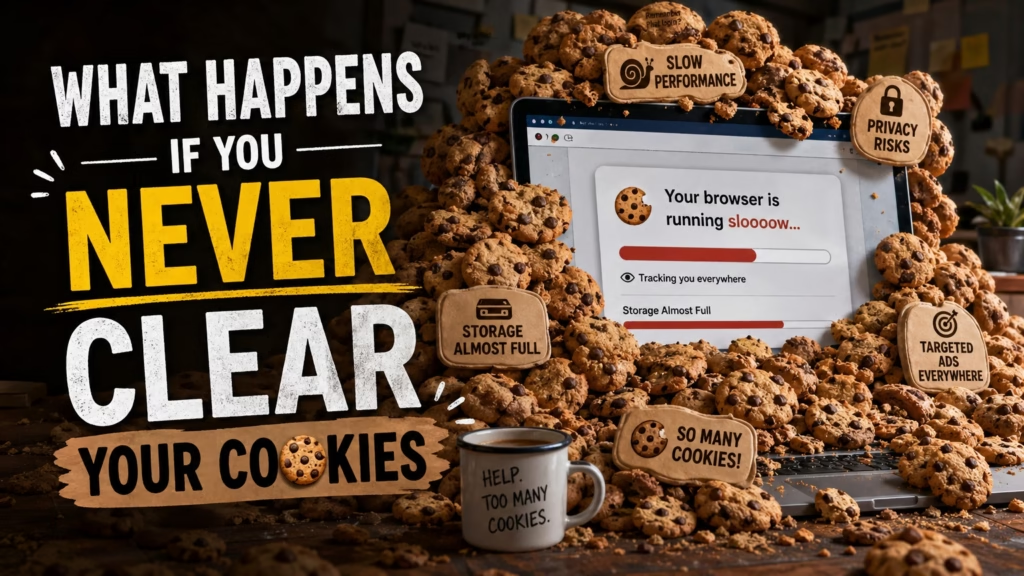
If you never clear your cookies, your browser gradually accumulates thousands of small text files from websites you’ve visited. These keep you logged in, remember your preferences, and track your browsing habits across the web. Nothing will explode. Your computer won’t slow to a crawl. But advertisers build an increasingly detailed profile of your behaviour, and some older cookies can cause website glitches.
Cookies are tiny text files that websites save on your device when you visit them. They’re not programs. They can’t install anything. They can’t give you a virus. They’re just small notes that the website leaves behind so it can recognise you next time.
When you log into a website and it remembers you tomorrow without asking for your password again — that’s a cookie. When an online shop keeps items in your cart even after you close the tab — cookie. When a news site remembers you prefer dark mode — cookie.
They’re genuinely useful. The problem is that not all cookies are created for your benefit.
“So cookies are just websites leaving notes about me on MY device without asking? That’s not a cookie, Ken. That’s a surveillance sticky note. At least real cookies taste good.”
After a few years of browsing without clearing cookies, here’s what’s sitting in your browser:
Thousands of first-party cookies. These are from websites you actually visited. Most are harmless — login tokens, language preferences, dark mode settings. They make the web more convenient. If you cleared these, you’d just have to log in everywhere again and re-set your preferences.
Hundreds (or thousands) of third-party tracking cookies. These are the ones worth caring about. They come from advertisers, analytics companies, and data brokers who place trackers on the websites you visit. Over time, they build a profile: what you browse, what you buy, what you search for, which articles you read, how long you spend on certain pages. The longer you go without clearing them, the more detailed this profile gets.
Expired or corrupted cookies. Some cookies have expiration dates. Some don’t. Old cookies from websites that have changed or gone offline can linger indefinitely and occasionally cause glitches — a page not loading correctly, a login loop, or a shopping cart that behaves strangely.
A small but real amount of storage space. Individually, cookies are tiny (a few kilobytes each). But collectively, thousands of them can add up to a few megabytes. Not enough to matter on a modern device, but technically they’re there.
This is the fear most people have, and the honest answer is: almost certainly not in any noticeable way. Cookies are text files measured in kilobytes. Your device handles gigabytes of data daily. The processing overhead of having a few thousand cookies is negligible on any modern computer or phone.
If your computer or browser feels slow, cookies are almost never the cause. The browser cache (which is different from cookies) is a much more likely culprit, and even that usually isn’t the problem people think it is. More often, a slow browser means too many tabs, too many extensions, or not enough RAM.
“My browser has 47 tabs open and Ken says COOKIES are not the performance problem. Thank you, Ken. I will continue to hoard tabs. This vindicates me completely.”
The actual reason to care about old cookies isn’t speed — it’s tracking. Third-party cookies are how advertisers follow you across the web. Every site you visit that has an ad network or analytics tracker drops a cookie, and that cookie gets read on the next site that uses the same network. Over months and years, the profile they build is remarkably detailed.
This is why you see ads that feel eerily specific. You searched for hiking boots once, and now every website you visit shows you hiking boot ads for three weeks. That’s not your phone listening to you — it’s cookies doing exactly what they were designed to do.
The good news is that browsers are cracking down on this. Chrome has been phasing out third-party cookie support (though the timeline keeps shifting). Safari and Firefox already block most third-party cookies by default. But if you’re on Chrome and have never cleared cookies, years’ worth of tracking data is still sitting in your browser.
Using incognito mode prevents new cookies from persisting after you close the window, but it doesn’t touch the cookies already stored from your regular browsing.
Here’s the honest, non-dramatic advice:
Clear them every month or two. Not because your computer will melt if you don’t, but because it’s basic digital hygiene. It resets tracking profiles, clears out stale data, and occasionally fixes weird website behaviour. It takes 30 seconds.
Know what you’re trading. Clearing cookies means you’ll be logged out of every website and have to sign in again. If you use a password manager (and you should), this is a minor inconvenience. If you don’t, and you’ve forgotten your passwords, this could be a frustrating afternoon. Sort that out first.
Consider selective clearing. Most browsers let you clear cookies from specific sites without wiping everything. If a particular website is acting up, clear its cookies first rather than doing a full reset.
Or just let your browser handle it. Safari and Firefox already block most tracking cookies. Chrome lets you set cookies to auto-delete when you close the browser. You can also set exceptions for sites you want to stay logged into. This is the “set and forget” approach that balances privacy with convenience.
| ✅ Reasons to Clear Cookies | ❌ Reasons You Probably Don’t Need To |
|---|---|
| Reset advertiser tracking profiles | Your computer feels slow (cookies aren’t causing that) |
| Fix a website that’s loading incorrectly or looping | You’re worried about viruses (cookies can’t do that) |
| Remove old login sessions on shared or public devices | Someone told you to “clear everything” as a general fix |
| You used a public computer and forgot to use incognito | You want your computer to run faster (clear your tabs instead) |
“I cleared my cookies and got logged out of 31 websites. THIRTY-ONE. I didn’t even know I was logged into 31 websites. Ken said that was ‘the point.’ I said the point was that I had to remember 31 passwords, which I obviously do not, because all of them were VelvetQueen123, which Ken has ALSO been yelling at me about.”
If you never clear your cookies, nothing catastrophic happens. Your computer won’t slow down noticeably, and nothing will break. But advertisers gradually build a more detailed profile of your browsing habits, and old or corrupted cookies can occasionally cause website glitches. Clear them every month or two as basic maintenance, or set your browser to auto-delete them on close. The real inconvenience is being logged out of everything — use a password manager to make that painless.

Hi. I’m Ken. I run Two Second Solutions, a one-man agency that somehow landed a fox spirit influencer as a client. I drink too much coffee, blog when I need to vent, and regularly update my résumé just in case she sets the office on fire again. I’m not crying — it’s just spell residue.

By Ken Hollow, who had to explain that “they can see you were on TikTok” and “they can see your TikToks” are two completely different…

By Ken Hollow, the man who spent an hour explaining to a fox spirit that a six-digit code is not “a loyalty test from the…

By Ken Hollow, the man who discovered his client’s password was “VelvetQueen123” and nearly had a professional breakdown I found out by accident. Nana needed…