Can My Parents See My Search History if I’m on Their Phone Plan?
By Ken Hollow, who is not on anyone’s family plan and yet somehow still gets asked to explain them “Ken. Hypothetically.” “That word never precedes…
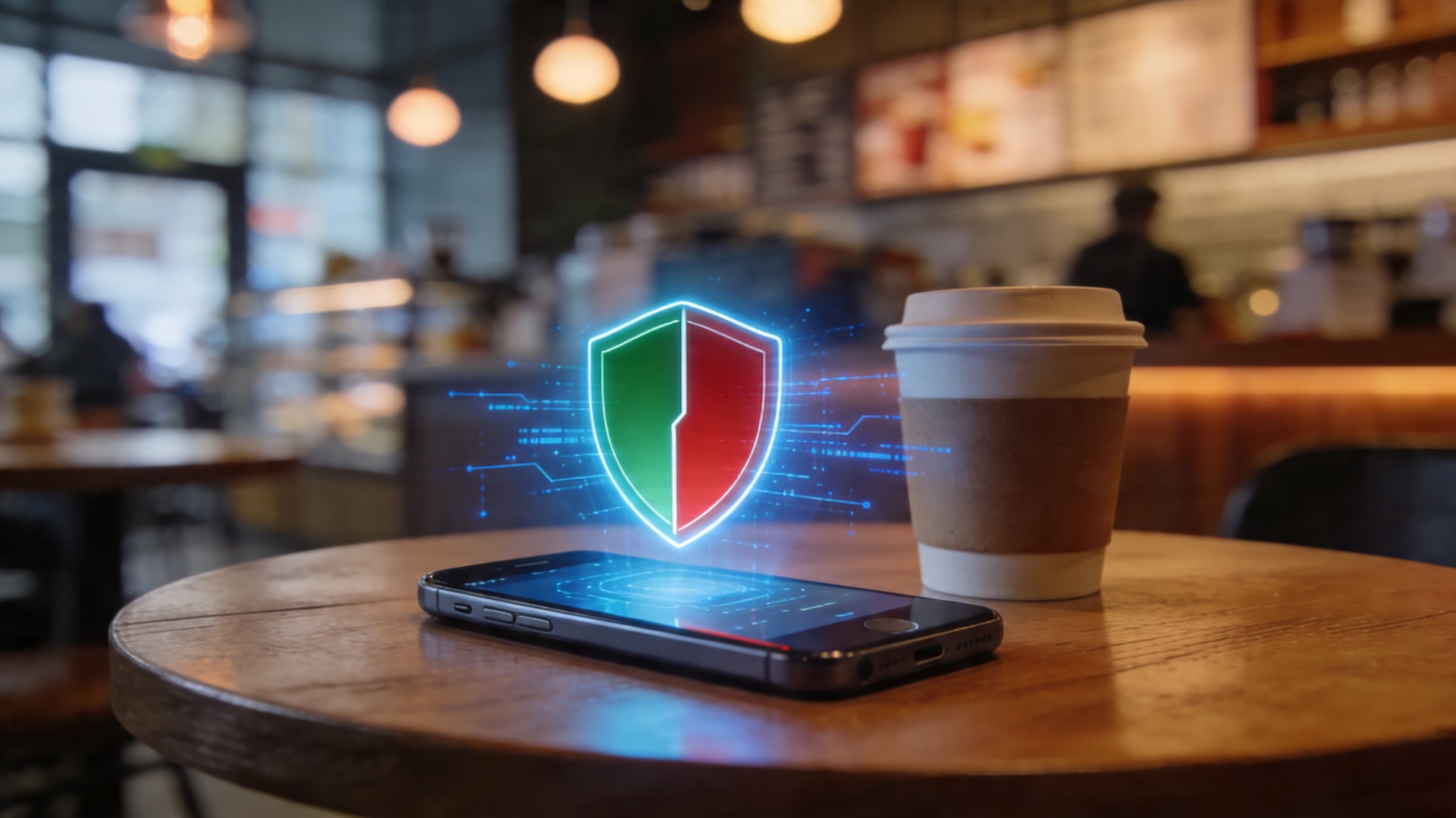
By Ken Hollow, the man who once watched a fox spirit log into her bank account on airport WiFi and aged five years in three seconds
“Ken, I’m at the café. The WiFi is free. I’m going to check my bank account.”
I dropped my coffee.
“Nana. NO.”
“Why? It has a little padlock icon.”
“That’s the café’s logo. Nana. Nana, are you listening—”
She wasn’t listening.
Public WiFi gets a lot of fear-mongering thrown at it — VPN ads would have you believe that connecting to a coffee shop network is basically the same as handing your passport to a stranger. That’s overselling it. But public WiFi isn’t risk-free either, and there are specific things you should and shouldn’t do on a shared network.
Here’s the honest breakdown: what’s actually safe, what’s actually risky, and what to do about it.
Public WiFi is safer than it used to be, thanks to HTTPS encryption now being standard on most websites. Casual browsing, social media scrolling, and reading articles are generally fine. But logging into banking, entering payment details, or accessing sensitive accounts on public WiFi without a VPN is still a risk — especially on networks without a password. A VPN is the single best protection, and switching to mobile data for sensitive tasks is the simplest alternative.
Let’s start with the good news, because most articles skip this part.
Ten years ago, public WiFi was genuinely dangerous for almost everything. Most websites didn’t encrypt their connections, so anyone on the same network could potentially see your passwords, messages, and browsing activity using freely available tools.
That’s no longer the case. The vast majority of websites now use HTTPS encryption — you can tell by the padlock icon in your browser’s address bar. When a site uses HTTPS, the data traveling between your device and that website is encrypted. Even if someone on the same network intercepts it, they get encrypted gibberish, not your actual information.
The U.S. Federal Trade Commission (FTC) now states that connecting through public WiFi is “usually safe” for many activities because of this widespread HTTPS adoption. That’s a significant shift from the blanket warnings of a few years ago.
So if you’re at a café reading the news, scrolling Instagram, or checking the weather — you’re fine. The sky is not falling.
HTTPS protects the connection between your browser and the website you’re visiting. But it doesn’t protect everything, and there are threats that operate at a different level.
This is the biggest real-world threat on public WiFi. An attacker sets up a WiFi network with a name that looks legitimate — “Starbucks_Free_WiFi” or “Airport_Guest” — but it’s actually their network. When you connect to it, all of your traffic passes through their equipment, and they can potentially intercept, redirect, or modify it.
These are common in airports, hotels, and public transport stations — a Forbes Advisor survey found 41% of people who used public WiFi while traveling had their information compromised — exactly the places where people are most likely to connect without thinking.
How to spot it: Ask staff for the exact network name before connecting. If you see two networks with very similar names, be cautious. If a network doesn’t require any password at all in a location where you’d expect one, think twice.
Some public networks don’t use any encryption at the network level — meaning the wireless traffic itself isn’t protected between your device and the router. On these networks, anyone with basic tools can capture data packets being transmitted. HTTPS still protects the content of secured websites, but DNS requests (which reveal which sites you’re visiting) and traffic to any non-HTTPS sites are exposed.
How to tell: If you can connect to the network without entering any password, it’s likely unencrypted. Networks that require a password (even a shared one like “café2024”) are using some level of wireless encryption.
Even with HTTPS, entering banking credentials, credit card numbers, or logging into high-value accounts (email, government portals) on a network you don’t control adds unnecessary risk. If you’ve accidentally connected to a fake hotspot, or if the network has been compromised in some other way, your credentials could be captured.
This is the one area where the VPN ads aren’t exaggerating. For anything involving money or sensitive personal data, public WiFi without additional protection is a risk worth taking seriously.
“So scrolling through velvet fashion blogs at the café is fine, but checking my bank balance is not?” — Exactly. Browse freely, bank cautiously.
| ✅ Generally Safe | ❌ Avoid Without a VPN |
|---|---|
| Browsing news sites and articles | Online banking and financial apps |
| Scrolling social media (not logging in for the first time) | Entering credit card or payment details |
| Checking weather, maps, and general information | Logging into email for the first time on a new device |
| Streaming music or video | Accessing work/company systems or sensitive documents |
| Messaging via encrypted apps (WhatsApp, Signal, iMessage) | Filing tax returns or accessing government portals |
The general rule: if it involves a password you’d be devastated to lose or financial information, don’t do it on public WiFi unless you have a VPN running.
A VPN encrypts all of your internet traffic before it leaves your device, making it unreadable to anyone on the network — including the network owner, other users, and anyone operating a fake hotspot. It’s the single most effective protection for public WiFi use.
Many VPN apps have an auto-connect feature that activates the VPN whenever you join an untrusted network. Turn this on and you never have to remember to protect yourself manually.
The simplest free alternative: toggle from WiFi to mobile data before logging into your bank, entering payment details, or checking email. Your mobile data connection goes through your carrier’s network, not the public WiFi, so none of the public WiFi risks apply. Just switch back when you’re done.
Before connecting, ask a staff member for the exact name and password of the network. Don’t just pick the first open network that sounds right. If you’re at a hotel, check the welcome materials for the network details rather than guessing.
Your phone remembers WiFi networks you’ve connected to before and automatically rejoins them. This is convenient at home but dangerous in public — your phone might automatically connect to a network named “Airport_WiFi” that isn’t the real airport network.
On iPhone: Settings → WiFi → tap the “i” next to any public network → turn off Auto-Join.
On Android: Settings → WiFi → tap the network → toggle off Auto-Connect (or “forget” the network after each use).
Two-factor authentication protects your accounts even if someone captures your password on public WiFi. Without the second factor (usually a code on your phone), the stolen password alone can’t grant access. Enable it on email, banking, and social media at minimum.
Before entering any information on a website while on public WiFi, make sure the address bar shows a padlock icon and the URL starts with “https://”. If a site you normally trust suddenly loads without the padlock, disconnect from the network — you might be on a fake hotspot that’s stripping encryption.
“Ken made me a checklist: VPN on, verify network name, no banking, check the padlock. I laminated it. He didn’t ask me to laminate it. I just believe in preparation.”
“Is hotel WiFi safe?” Hotel WiFi is more trustworthy than random open networks because the hotel has a reputation to protect and usually requires a password or room number. But the network is still shared with every other guest, and hotels are common targets for fake hotspots. Use a VPN for anything sensitive.
“Is café WiFi safe?” For casual browsing, yes. For banking, no. The staff might share the same password with a hundred people a day — anyone who has it can join the network. Verify the network name with staff and use a VPN for sensitive tasks.
“Is airport WiFi safe?” Airports are the highest-risk environment for fake hotspots because they’re full of distracted travelers connecting in a hurry. Always verify the exact network name (check airport signage or ask at an info desk), and strongly consider using a VPN for the entire session.
“What about library WiFi?” Libraries generally maintain their networks better than most public venues and often use authentication. The risk is lower but not zero. The same rules apply: fine for browsing, use caution for sensitive logins.
“Can I use public WiFi if I just need to look something up quickly?” Yes. A quick Google search, checking a map, reading a menu — these are all fine without any additional protection. The risks apply to extended sessions involving sensitive accounts, not to quick lookups.
Public WiFi is safer than it used to be thanks to widespread HTTPS encryption. Casual browsing, social media, and streaming are generally fine. The real risks are fake hotspots that mimic legitimate networks and performing sensitive tasks (banking, payments, email logins) on shared networks without a VPN. To protect yourself: use a VPN (the most effective single step), switch to mobile data for banking and payments, verify network names before connecting, disable auto-connect on your phone, and enable two-factor authentication on your important accounts. Don’t panic — just don’t bank on airport WiFi without protection.
“I now have a VPN that auto-connects on public WiFi. I browse café networks with zero fear. Ken says I’ve become ‘security-conscious.’ I say I’ve become ‘untouchable.’ Same energy.”

Hi. I’m Ken. I run Two Second Solutions, a one-man agency that somehow landed a fox spirit influencer as a client. I drink too much coffee, blog when I need to vent, and regularly update my résumé just in case she sets the office on fire again. I’m not crying — it’s just spell residue.

By Ken Hollow, who is not on anyone’s family plan and yet somehow still gets asked to explain them “Ken. Hypothetically.” “That word never precedes…
By Ken Hollow, the man whose email appeared in nine data breaches and has the trust issues to prove it Nana’s email was sending messages…
By Ken Hollow, the WiFi owner who wishes he couldn’t see Nana’s browsing history “Ken. Can you see what I’m doing on the WiFi?” I…