What Can My School Actually See on My Own Laptop on School WiFi?
By Ken Hollow, who has never attended a school with WiFi and is therefore, somehow, the person being asked “Ken. Do schools watch you?” “Are…
By Ken Hollow, the man who discovered his fox spirit client’s password for everything was “VelvetQueen123” — and yes, she used the same one for every single account.
“It’s a STRONG password, Ken. It has uppercase AND numbers.” She said this with the confidence of someone who has never been breached. I asked how many accounts used it. She paused. Counted on her fingers. Ran out of fingers. Started over.
Then I asked where she stored it. “Chrome remembers it for me.” Another pause. “Is that… bad?”
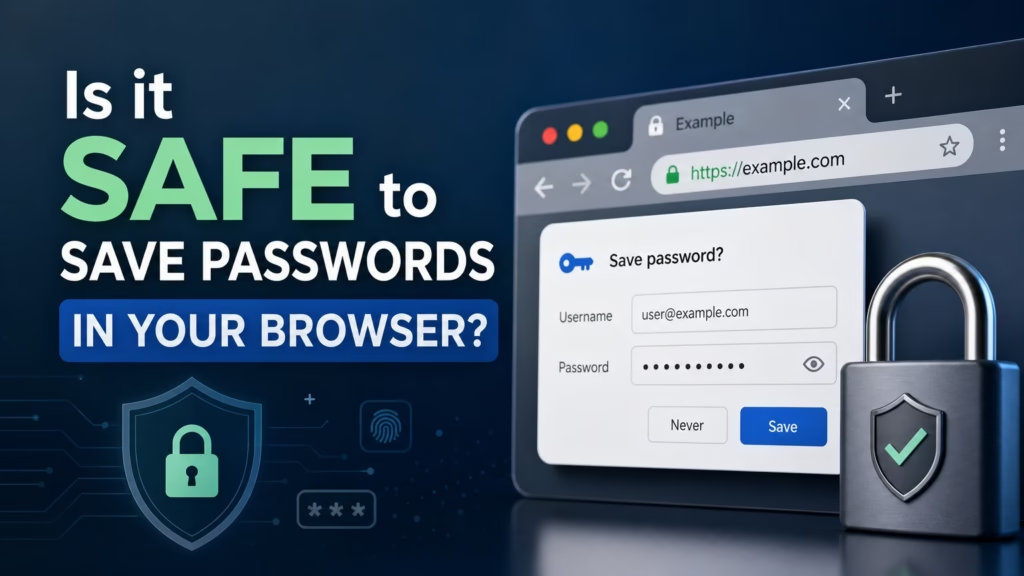
It’s not great. But it’s also not as catastrophic as some security articles make it sound. Let’s be honest about what browser password saving actually does, where it falls short, and what the better option is — without the fear-mongering.
Saving passwords in your browser is better than reusing the same password everywhere or writing them on sticky notes. But it’s less secure than using a dedicated password manager. Browser-saved passwords can be exposed if someone accesses your device, if your browser account gets compromised, or if malware targets your browser’s password storage. For most people, a free password manager like Bitwarden is a significant security upgrade.
When Chrome, Firefox, Safari, or Edge asks to save your password, here’s what’s going on behind the scenes:
The browser stores your username and password locally in a profile folder on your device. If you’re signed into a browser account (like your Google account for Chrome), those passwords also sync to the company’s servers so they’re available on your other devices. The passwords are encrypted — but the strength and method of that encryption varies by browser and operating system.
On your device, the passwords are protected by whatever lock protects your computer. If your laptop has a login password or biometric lock, someone would need to get past that first. If your computer has no lock screen — or if you leave it unlocked — anyone who sits down can open Chrome’s settings and view every saved password in plain text.
That last part is worth repeating: if someone has access to your unlocked computer, they can see all your saved browser passwords. Chrome will ask for your system password before revealing them, but that’s the same password they already bypassed to get onto your computer.
“Wait. Anyone who opens my laptop can see ALL my passwords? Ken, I leave my laptop open at coffee shops while I get refills. How long have you known about this and WHY DIDN’T YOU LEAD WITH IT?”
Browser password managers weren’t built as security tools. They were built as convenience features that got security bolted on later. That’s an important distinction, and it shows up in a few key areas:
Chrome’s passwords live in Chrome. Safari’s live in Safari. If you use multiple browsers — or switch between them — your passwords don’t follow. A dedicated password manager works across all browsers and apps.
Dedicated password managers like Bitwarden and 1Password use end-to-end encryption with a master password that never leaves your device. Your password vault is encrypted before it ever reaches their servers, meaning even the company can’t read your passwords. Browser password managers use OS-level encryption at best — and Google, Apple, or Microsoft do have access to the synced data on their servers (though they protect it with additional security measures).
Browser credential storage is one of the first things malware looks for. Password-stealing malware specifically targets Chrome’s Login Data file and similar storage locations in other browsers. These are well-documented targets because the storage format is standardised and widely understood. Dedicated password managers store credentials in encrypted vaults that are significantly harder for malware to crack.
Dedicated password managers will flag weak passwords, reused passwords, and passwords found in data breaches. Chrome has added some of this (it’ll warn you about compromised passwords), but it’s not as comprehensive. A good password manager actively helps you improve your security, not just store your existing habits.
I said I wouldn’t fear-monger, so here’s the other side: for plenty of people, browser password saving is a reasonable choice. It’s dramatically better than the alternatives most people actually use:
| ✅ Browser Save Is Better Than… | ❌ But Worse Than… |
|---|---|
| Using the same password for every account | A dedicated password manager (Bitwarden, 1Password) |
| Writing passwords on sticky notes | A manager with end-to-end encryption and a master password |
| Using simple, guessable passwords because you can’t remember strong ones | A manager that generates random passwords for each account |
| Constantly clicking “Forgot Password” and resetting every time | A manager that autofills across all browsers and apps |
If your threat model is “I don’t want my family/roommate to accidentally see my passwords” and your computer has a lock screen, browser saving is fine for low-stakes accounts. If you’re protecting anything with real consequences — banking, email, healthcare portals — you should use something stronger.
“Ken says ‘threat model’ like I’m supposed to know what that means. I told him my threat model is ‘people finding out I watch 4 hours of K-drama every night.’ He said that’s not what it means. I disagree.”
A dedicated password manager. Genuinely, that’s the answer. Here’s why they’re worth the switch:
They generate random, unique passwords for every account — so even if one site gets breached, nothing else is affected. They autofill across all your browsers and apps, not just one. They encrypt your vault with a master password that only you know — the company running the service literally cannot access your data. And most of them will alert you when one of your saved passwords shows up in a known data breach.
Free option: Bitwarden is open-source and free for personal use. It does everything most people need.
Paid options: 1Password and Dashlane offer polished interfaces, family sharing plans, and additional features like secure document storage. Typically around €3-4/month.
The switch takes about 30 minutes. Every major password manager can import your saved passwords directly from Chrome, Firefox, Safari, or Edge. You install the browser extension, import your passwords, and then disable browser password saving. Going forward, the password manager handles everything.
Before you switch, you might want to see what your browser has been saving. Here’s where to look:
Chrome: Settings → Autofill and passwords → Google Password Manager. You can view, edit, and export all saved passwords.
Firefox: Settings → Privacy & Security → Logins and Passwords → Saved Logins.
Safari: Settings → Passwords (on Mac) or Settings → Passwords (on iPhone).
Edge: Settings → Profiles → Passwords.
All of these will ask for your device password or biometric before showing the actual passwords. If they don’t — that’s a sign your device isn’t properly locked, which is a separate problem you should fix immediately.
Whether you use browser password saving or a dedicated manager, enable two-factor authentication on every account that supports it. Even if someone does get your password — through a breach, malware, or shoulder-surfing — 2FA means the password alone isn’t enough to access your account. Combined with a strong, unique password for each account, 2FA makes you a dramatically harder target.
“I installed Bitwarden. It told me I had 23 accounts using the same password. Twenty-three. Ken printed the report and taped it to the fridge. He called it ‘evidence.’ I called it ‘a personal attack.’ We haven’t spoken since Tuesday.”
Saving passwords in your browser is convenient and better than reusing one password everywhere. But browser password storage is less secure than a dedicated password manager — it’s easier for malware to target, it’s tied to one browser, and anyone with access to your unlocked device can view your passwords in plain text. For anything important, switch to a dedicated password manager like Bitwarden (free) or 1Password (paid). The switch takes about 30 minutes. And either way, turn on 2FA.

Hi. I’m Ken. I run Two Second Solutions, a one-man agency that somehow landed a fox spirit influencer as a client. I drink too much coffee, blog when I need to vent, and regularly update my résumé just in case she sets the office on fire again. I’m not crying — it’s just spell residue.
By Ken Hollow, who has never attended a school with WiFi and is therefore, somehow, the person being asked “Ken. Do schools watch you?” “Are…
By Ken Hollow, whose fox spirit asked whether the landlord could see her browsing history and then, without pausing, asked whether the landlord could be…
By Ken Hollow, the man whose fox spirit refused to use the cafe WiFi for three weeks after reading one headline about “WiFi hackers” “Ken.…