How to Free Up Storage on iPhone (Without Deleting Everything You Love)
By Ken Hollow, the man who once watched a fox spirit try to take a photo, get the “Storage Almost Full” warning, and blame it…
By Ken Hollow, the man who has watched three separate people lose years of photos because they assumed “it backs up automatically” without ever checking if it actually did
“Ken. My phone broke. I lost everything.”
“Was it backed up?”
“I thought it was. It said iCloud.”
“Did you check if the backup was current?”
“…No.”
“When was the last backup?”
“It says… eleven months ago.”
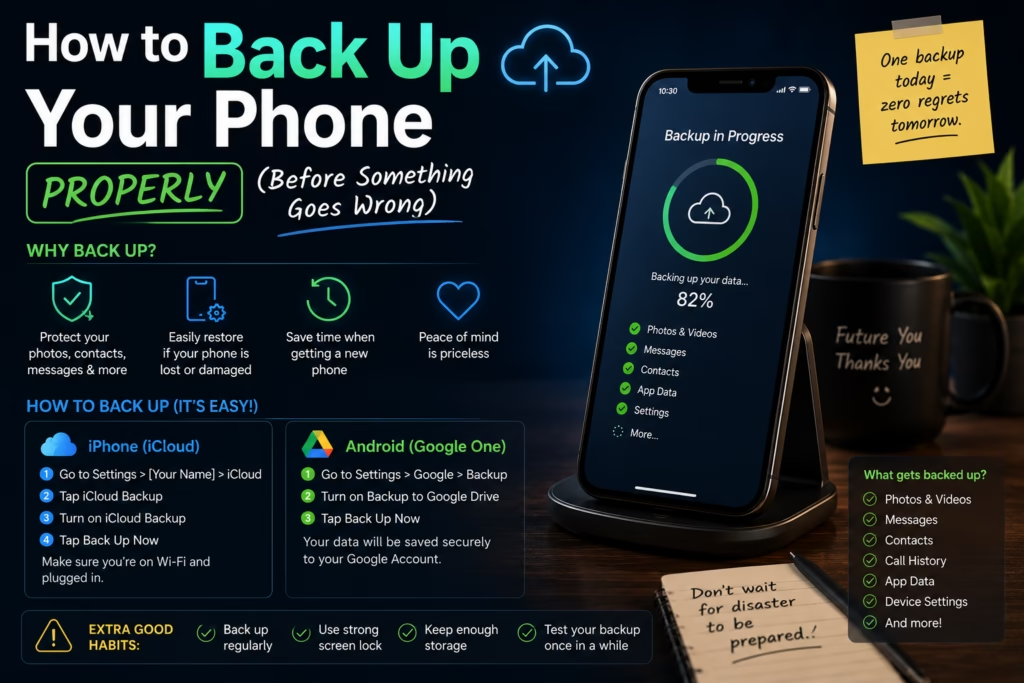
This is not a rare conversation. It happens constantly, because “backing up your phone” sounds simple, and phones do try to do it automatically, and the assumption that automatic means working is one that goes wrong at the worst possible moment. Here’s how to actually verify your backup is happening and what it covers.
A proper phone backup means a complete, recent copy of your phone’s data exists somewhere other than your phone — so if the phone is lost, stolen, broken, or replaced, you can restore everything to a new device. The most common failure isn’t not having a backup enabled — it’s having a backup that stopped working months ago because of a full storage account, a WiFi issue, or a setting that silently turned off. Checking takes 30 seconds. Do it now, before you need it.
Before checking your backup status, it helps to know what’s actually being backed up.
A full phone backup typically includes: your app data and settings, text messages and iMessage history, call history, contacts, calendar, device settings, home screen layout, and photos/videos (depending on setup).
What may NOT be included: apps themselves (these are re-downloaded from the App Store), content you’ve downloaded within apps (like offline Spotify playlists or downloaded Netflix shows — these need to be re-downloaded), and some third-party app data if the developer hasn’t enabled iCloud/Google backup support.
Photos deserve special attention: on iPhone, photos are NOT included in a standard iCloud device backup if you have iCloud Photos enabled — because iCloud Photos is considered a separate sync. Both should be on, but they do different things. iCloud Backup captures a snapshot of your device. iCloud Photos keeps your photos continuously synced to the cloud.
Go to: Settings → [your name] → iCloud → iCloud Backup
Check three things:
1. Is “iCloud Backup” toggled on? If it’s off, no backup is happening.
2. When was the last backup? It shows “Last Backup: Today” or a specific date. If it says anything older than a few days, something is wrong.
3. Do you have enough iCloud storage? The most common reason backups silently stop: your 5 GB free iCloud storage fills up. Go to Settings → [your name] → iCloud → Manage Account Storage to see how much is used.
To run a manual backup right now: tap “Back Up Now” on the same screen. Your phone needs to be on WiFi, plugged in (or have sufficient battery), and have enough iCloud storage available.
Also check iCloud Photos separately: Settings → [your name] → iCloud → Photos — make sure “Sync this iPhone” is on. This is your photos’ separate protection.
“My last iCloud backup was four months ago. My iCloud storage is full. It has been silently failing this entire time.” — This is the most common backup situation I encounter. “My phone has been lying to me by omission.” The phone wasn’t lying — it did try to tell you. There’s a notification for full storage that is very easy to dismiss. “I dismissed it.” Everyone does.
Android backup varies slightly by manufacturer, but for most Android phones:
Google Backup: Settings → System → Backup → Google Backup. Check that it’s on and note the last backup date. Tap “Back up now” to run one immediately. This covers app data, call history, contacts, device settings, SMS messages, and photos (if Google Photos backup is enabled).
Google Photos (critical — check this separately): Open Google Photos → tap your profile picture → “Photos settings” → “Backup.” Make sure it says “Backup is on” and shows a recent backup time. If it says “Waiting for WiFi” or shows a warning, photos are not currently backing up.
Samsung devices have an additional Samsung Cloud backup (Settings → Accounts and Backup → Back up data) that captures things Google backup misses, including some Samsung-specific app data. Worth enabling if you’re on a Samsung.
Storage is full. The #1 culprit. iCloud gives 5 GB free — enough for maybe one year of backups before it fills. Google gives 15 GB free, shared with Gmail and Drive. When storage fills, backups stop without dramatic warning.
Not enough WiFi time. iCloud backup only runs on WiFi. If your phone is rarely on WiFi long enough to complete a backup — maybe you mostly use mobile data — backups fall behind. A backup needs to run to completion without interruption.
Low Power Mode. Some backup processes pause when Low Power Mode is active. If you use Low Power Mode frequently, check whether backups are completing.
A setting changed after an OS update. Software updates occasionally reset privacy or backup settings. After a major iOS or Android update, it’s worth verifying your backup settings are still as you expect.
The goal is a backup that runs automatically every night and that you verify is actually working once a month. Here’s the setup:
iPhone: Enable iCloud Backup, enable iCloud Photos, and pay for enough iCloud storage (50 GB is $0.99/month and covers most people comfortably). Plug your phone in at night near WiFi. The backup happens automatically while you sleep.
Android: Enable Google Backup and Google Photos backup. Make sure you have enough Google storage (15 GB free covers most people, or upgrade Google One). Same principle — phone near WiFi overnight, backup runs automatically.
Once a month, spend 30 seconds checking that the last backup date is recent. That’s it. The cost of this habit is essentially zero. The cost of not having it is potentially years of photos, messages, and data.
“I upgraded to 50 GB iCloud, the backup ran immediately, and it says it will now back up every night. That took four minutes and $0.99 a month.” — Yes. “I am unreasonably annoyed that I didn’t do this four months ago.” The annoyance is reasonable. The time to do it is now, not after something goes wrong. “It should be more dramatic to set up. I feel like this warranted more ceremony.” Unfortunately the important things rarely do.
A proper phone backup means a complete, recent copy of your data exists offsite — automatically, so you don’t have to think about it. The most common failure: the backup stopped months ago because storage was full, and nobody noticed. On iPhone: Settings → [your name] → iCloud → iCloud Backup — check it’s on and the last backup date is recent. Also check iCloud Photos is enabled separately. On Android: Settings → System → Backup, and check Google Photos backup separately. The fix for most people: buy a small amount of cloud storage (50 GB iCloud for $0.99/month, or Google One equivalent), enable automatic backup, plug in near WiFi at night. Verify once a month that the last backup is recent. Takes four minutes to set up. The cost of not doing it can be everything on your phone.

Hi. I’m Ken. I run Two Second Solutions, a one-man agency that somehow landed a fox spirit influencer as a client. I drink too much coffee, blog when I need to vent, and regularly update my résumé just in case she sets the office on fire again. I’m not crying — it’s just spell residue.
By Ken Hollow, the man who once watched a fox spirit try to take a photo, get the “Storage Almost Full” warning, and blame it…

By Ken Hollow, the man who once watched a fox spirit stare at the words “Clear Cache” for thirty seconds and then whisper, “Is it…
By Ken Hollow, the man who has been asked by a fox spirit to justify the continued existence of a phone that is, in her…