My WiFi Is Fast on Speed Tests But Slow on Everything Else
By Ken Hollow, who was shown a speed test result as evidence in an argument he had not agreed to participate in “Ken. Three hundred…

By Ken Hollow, who has been handed a laptop and told “fix it” more times than he has been told “hello”
“Ken. The internet is broken.”
“You’re watching a video right now.”
“On my phone. The laptop says the internet is broken.”
“Then the internet isn’t broken.”
“The laptop disagrees and the laptop is the one being difficult, so the laptop is correct.”
If one device connects fine and another doesn’t, your internet is working — the problem is on the device that fails, or in how the router treats it specifically. That eliminates about 80% of what people usually try first. Work through it in this order: confirm which network the laptop is actually on, restart the laptop’s WiFi adapter, forget and rejoin the network, then check band and driver issues. Restarting the router is near the bottom of this list, not the top.
Before troubleshooting anything, establish which of two situations you’re in, because they have completely different causes:
The laptop won’t connect at all — it can’t join the network, or it joins and immediately drops.
The laptop connects but has no internet — it shows as connected, possibly with a warning triangle, but nothing loads.
These feel identical to the person suffering. They are not the same problem. The first is usually authentication or the adapter. The second is usually DNS or an IP address conflict.
Sounds insultingly simple. It’s the answer surprisingly often.
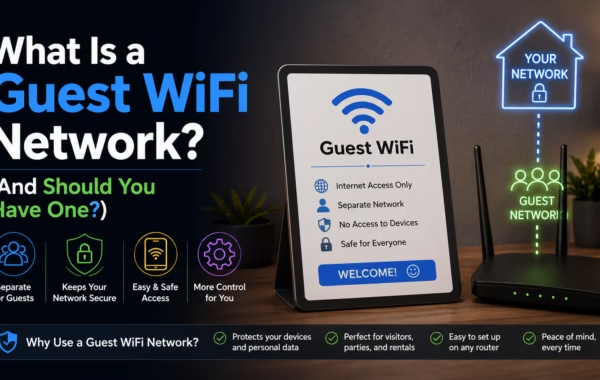
Most homes broadcast more than one network name — a 2.4 GHz and a 5 GHz band, sometimes a guest network, sometimes a leftover network from an old router still plugged in behind the TV. Your phone may have picked the working one while the laptop clung to something else.
Look at the exact network name the laptop is joined to and compare it to your phone. If they differ, join the laptop to the same one and see if the problem vanishes.
Also worth checking: is the laptop connected to a neighbour’s open network, or a hotspot it remembered from somewhere else? Laptops rejoin remembered networks aggressively.
The WiFi radio in your laptop is a piece of hardware with its own driver, and it gets stuck. Toggling it is instant and fixes a genuine share of cases.
Windows: Turn WiFi off and on from the taskbar. If that doesn’t do it, Settings → Network & internet → Advanced network settings → Disable then Enable the WiFi adapter. There’s also a built-in troubleshooter under Network & internet → Network troubleshooter, which is better than its reputation for exactly this class of problem.
Mac: Hold Option and click the WiFi icon for detailed diagnostics, or turn WiFi off and on. If it persists, System Settings → Network → WiFi → Details → and rejoin.
If a simple toggle fixes it and then it breaks again in a day, that’s a driver or power-management problem — covered below.
Your laptop stores the network’s password and settings. That stored profile can become corrupted, or hold an old password after you changed it.
Forget the network entirely, then rejoin by typing the password fresh. On Windows: Settings → Network & internet → WiFi → Manage known networks → select → Forget. On Mac: System Settings → Network → WiFi → Advanced → select → remove.
This resolves a large share of “connects but no internet” cases, because it forces a clean IP address request rather than reusing a stale one.
“You are telling the laptop to forget its password and then immediately telling it the password again.” — Yes. “And that works?” Distressingly often. “That’s not engineering, Ken, that’s just asking it politely to stop being weird.” It is precisely that.
If your laptop is older, it may only support 2.4 GHz while your phone happily uses 5 GHz. If your router was recently upgraded or reconfigured — particularly if it now uses a single network name for both bands — an older laptop can end up unable to join properly.
The reverse also happens. A laptop pinned to a 5 GHz network in a far room may show full bars, connect, and still fail, because 5 GHz carries less well through walls. Our guide on 2.4 GHz versus 5 GHz explains which to prefer where.
Test for this by temporarily giving the two bands different names in your router settings, then explicitly joining the laptop to 2.4 GHz. If it works there and fails on 5 GHz, you’ve found it.
Two Windows-specific causes are worth knowing because they produce maddening intermittent behaviour.
An outdated or wrong WiFi driver. Windows Update sometimes installs a generic driver that works poorly with your specific adapter. Go to Device Manager → Network adapters, find your wireless adapter, and update the driver — ideally from the laptop manufacturer’s support page rather than letting Windows pick.
Power management turning the adapter off. Windows will happily power down your WiFi radio to save battery, which causes drops that look random and cluster around the laptop being idle. In Device Manager → Network adapters → your adapter → Properties → Power Management, untick “Allow the computer to turn off this device to save power.”
If your symptom is “it works, then drops when I come back to it,” this is very likely your cause.
If the laptop says connected with no warnings but pages won’t load, try loading a site by IP address rather than name. If that works while names fail, it’s DNS.
Fix it by setting a public DNS server on the laptop — Cloudflare’s 1.1.1.1 or Google’s 8.8.8.8 — rather than whatever it inherited. This is a two-minute change in your network adapter’s settings and it also tends to make browsing feel slightly snappier.
Restart it if you’ve exhausted the above. Two router-side causes genuinely produce single-device failures:
MAC address filtering — if someone once enabled a device allow-list, a new or reset laptop won’t be on it.
DHCP pool exhaustion — the router has run out of addresses to hand out, usually on a network with many devices. A router restart clears this, and it’s the one case where restarting first is justified.
If every device is slow rather than one device failing, that’s a different problem entirely — start with why your WiFi is slow instead.
“You put ‘restart the router’ at the end.” — Because if your phone works, the router is fine. “But it’s the first thing everyone does.” It is. And it’s why people spend twenty minutes rebooting hardware that was never broken.
If your phone works and your laptop doesn’t, the internet is fine and the problem is device-side — so don’t start with the router. Work in order: confirm the laptop is on the same network name as the phone, toggle the WiFi adapter off and on, forget the network and rejoin with a fresh password entry, then check whether a band mismatch (2.4 vs 5 GHz) explains it. On Windows, check the adapter driver and disable the power-management setting that switches the radio off. If it says connected but nothing loads, suspect DNS and set 1.1.1.1 or 8.8.8.8 manually. Only then restart the router, where MAC filtering or an exhausted DHCP pool are the real single-device culprits.

Hi. I’m Ken. I run Two Second Solutions, a one-man agency that somehow landed a fox spirit influencer as a client. I drink too much coffee, blog when I need to vent, and regularly update my résumé just in case she sets the office on fire again. I’m not crying — it’s just spell residue.

By Ken Hollow, who was shown a speed test result as evidence in an argument he had not agreed to participate in “Ken. Three hundred…
By Ken Hollow, the man who gave his WiFi password to a visiting relative in 2022 and discovered three months later that they had shared…

By Ken Hollow, the only IT support tech whose help tickets come written in riddles and moonlight It started, as most catastrophes do, with Nana…