Can My Employer See What I Do on My Personal Phone on Company WiFi?
By Ken Hollow, who had to explain that “they can see you were on TikTok” and “they can see your TikToks” are two completely different…
By Ken Hollow, the man who watched a fox spirit nearly click a “Your Apple ID has been suspended” email because the logo looked exactly right
“Ken. Apple says my account is suspended. There’s a link to fix it.”
“Don’t click that.”
“But it has the Apple logo.”
“Anyone can put the Apple logo in an email.”
“It says my account will be permanently deleted in 24 hours.”
“That’s the point. They want you to panic and click before you think.”
“…Is this a phishing email?”
“Yes.”
“I nearly clicked it.”
“Everyone nearly clicks them. That’s why they work.”
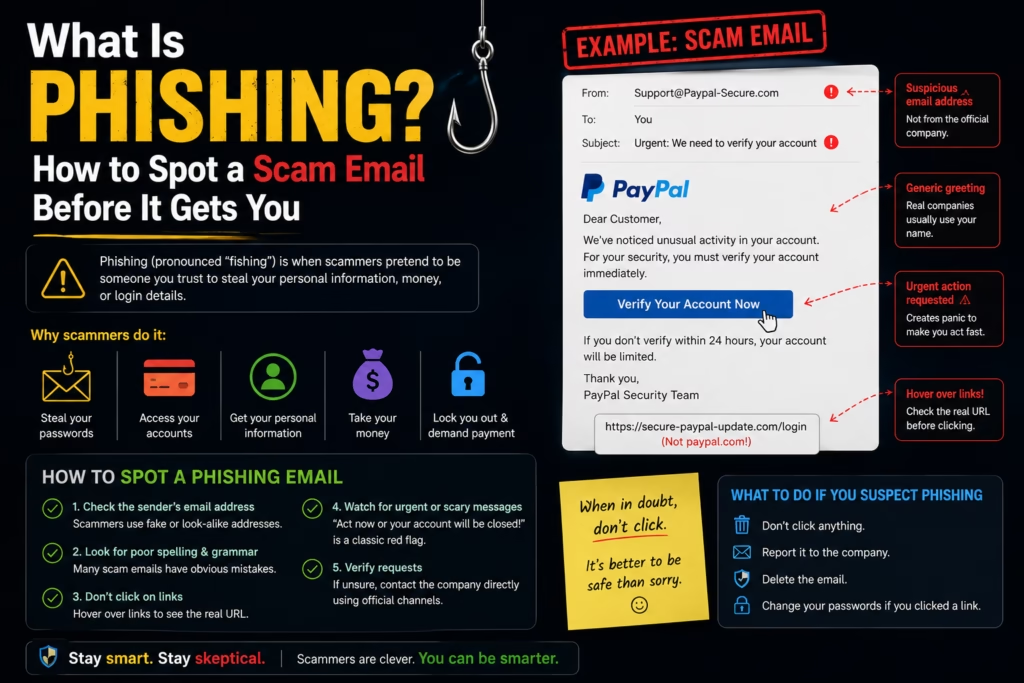
Phishing is when someone impersonates a trusted company or person to trick you into handing over your password, payment details, or personal information — usually via a fake email or website. It’s the most common method used to compromise accounts, and it works not because people are careless, but because phishing emails are specifically designed to create urgency and look legitimate. The defence is knowing what to look for before you click.
A phishing attack has three steps. First, the attacker impersonates someone you trust — your bank, Apple, PayPal, Amazon, Netflix, your employer, or even a friend. Second, they send a message that creates urgency — your account is suspended, there’s been suspicious activity, a payment failed, a package couldn’t be delivered. Third, they direct you to a fake website that looks identical to the real one, where you “log in” and hand your credentials directly to them.
The whole operation takes less than 60 seconds on the victim’s side. The attacker then has your username and password, which they use immediately or sell.
What makes modern phishing effective is quality. Ten years ago, phishing emails were easy to spot — broken English, obvious fake logos, absurd claims. Today, with AI writing tools and easily cloned website templates, phishing emails can be pixel-perfect replicas of real company communications, including proper logos, legal footers, and personalised details.
The sender’s email address. This is the single most reliable tell. Look at the actual email address — not the display name, the address itself. Click or tap on the sender name to reveal it. A phishing email pretending to be Apple might show the display name “Apple Support” but the actual address is something like noreply@apple-security-alert.com or support@appleid.verify-account.net. The display name can be anything. The address is much harder to fake convincingly.
Urgency and threats. Real companies do not email you with 24-hour ultimatums to click a link or lose your account permanently. “Your account will be deleted,” “Immediate action required,” “Your payment has failed — update now” — these are pressure tactics designed to make you act before you think. Legitimate account notices give you time and direct you to visit the website yourself, not through their link.
The link destination. Hover over any link (on desktop) before clicking — the actual URL appears in the bottom bar of your browser or email client. On mobile, press and hold a link to preview the destination. What you’re looking for: does the domain match the real company? apple.com is Apple. apple.account-verify.com is not. paypal.com is PayPal. paypal-security.net is not. The attacker owns the fake domain — everything before the last dot-something is decoration.
Generic greeting. Emails from companies you have accounts with almost always address you by name. “Dear Customer,” “Hello User,” or “Dear Account Holder” in an email that claims to be from your bank is a warning sign. Phishing emails are sent to thousands of people at once — they can’t personalise the greeting.
Unexpected contact. Did you initiate anything that would cause this email? If you didn’t recently try to log in, reset a password, or place an order, an email claiming there was “suspicious activity on your account” or “a problem with your recent order” should be treated with immediate suspicion.
“So the rule is: don’t click the link in the email — go directly to the website yourself?” — Exactly. If your bank emails you about suspicious activity, open a new browser tab, type your bank’s address manually, and log in there. If there’s actually a problem, you’ll see it. If there’s no problem, the email was fake. “That’s a very simple rule.” It is. The hard part is remembering it when the email says you have 24 hours.
Email is the most common vector, but phishing happens across every communication channel:
SMS phishing (smishing): Text messages claiming to be from your bank, a delivery company, or a government agency. “Your package could not be delivered — click here to reschedule.” These are extremely common and often catch people off guard because we’re less conditioned to be suspicious of texts.
Voice phishing (vishing): Phone calls from someone claiming to be from your bank’s fraud department, Microsoft support, or the IRS. They create urgency and ask you to confirm your account details, install software, or transfer money. A caller asking you to “verify your identity” by giving them your full card number is always suspicious — real banks ask you to call the number on the back of your card instead.
Spear phishing: Targeted phishing aimed at a specific person, using personalised details to be more convincing. “Hi [your name], following up on our conversation about the [real project name] invoice…” These are harder to spot because they reference real context — often pulled from your social media or a previous data breach.
Clone phishing: The attacker intercepts or copies a legitimate email you previously received, replaces the link or attachment with a malicious one, and resends it. It looks like a follow-up to a real conversation.
If you clicked a link but didn’t enter any information, you’re likely fine — the danger is entering credentials on a fake site, not the click itself (though some very sophisticated attacks can install malware just from a page load, particularly on outdated devices).
If you entered your password on a phishing site:
1. Change that password immediately — go directly to the real website and change it now.
2. Change it everywhere you used the same password — this is why password reuse is dangerous. One compromised password becomes many.
3. Check for any account activity that happened after you clicked — logins from unusual locations, emails sent you didn’t write, settings changes.
4. Enable two-factor authentication if it wasn’t already on — even with a stolen password, 2FA means the attacker can’t log in without the second factor.
5. If financial details were entered, contact your bank immediately to flag the account.
You can also check if your email address appeared in known data breaches — instructions are in our guide on how to check if your email has been compromised.
“I have decided that every email claiming to be urgent is now automatically suspicious.” — That’s a reasonable heuristic. Genuine urgency rarely arrives via email. “And if Apple actually does suspend my account, I’ll go to the App Store and find out.” That’s exactly the right approach. “I’ve become cynical.” You’ve become appropriately calibrated.
Phishing is impersonating a trusted company to steal your password or payment details, usually via a fake email and a cloned login page. It works because modern phishing looks legitimate and creates urgency to bypass your better judgment. The checks: look at the actual sender email address (not the display name), hover over links before clicking to verify the real domain, be suspicious of any “urgent action required” framing, and never follow a link from an email to log into a sensitive account — type the address directly into your browser instead. If you did enter credentials on a suspicious site: change the password immediately, change it everywhere you reused it, enable 2FA, and check for account activity.

Hi. I’m Ken. I run Two Second Solutions, a one-man agency that somehow landed a fox spirit influencer as a client. I drink too much coffee, blog when I need to vent, and regularly update my résumé just in case she sets the office on fire again. I’m not crying — it’s just spell residue.
By Ken Hollow, who had to explain that “they can see you were on TikTok” and “they can see your TikToks” are two completely different…
By Ken Hollow, the man whose fox spirit refused to use the cafe WiFi for three weeks after reading one headline about “WiFi hackers” “Ken.…
By Ken Hollow, who once tried to explain “your ISP sees the envelope, not the letter” and was asked why the internet involves so much…