What Happens If You Never Clear Your Cookies?
By Ken Hollow, the man who watched a fox spirit read the words “This site uses cookies” and respond with genuine excitement because she thought…
By Ken Hollow, who has never attended a school with WiFi and is therefore, somehow, the person being asked
“Ken. Do schools watch you?”
“Are you enrolled somewhere, Nana.”
“I audit things. Informally. Without permission.”
“That’s just trespassing with extra steps.”
“It’s auditing, Ken.”
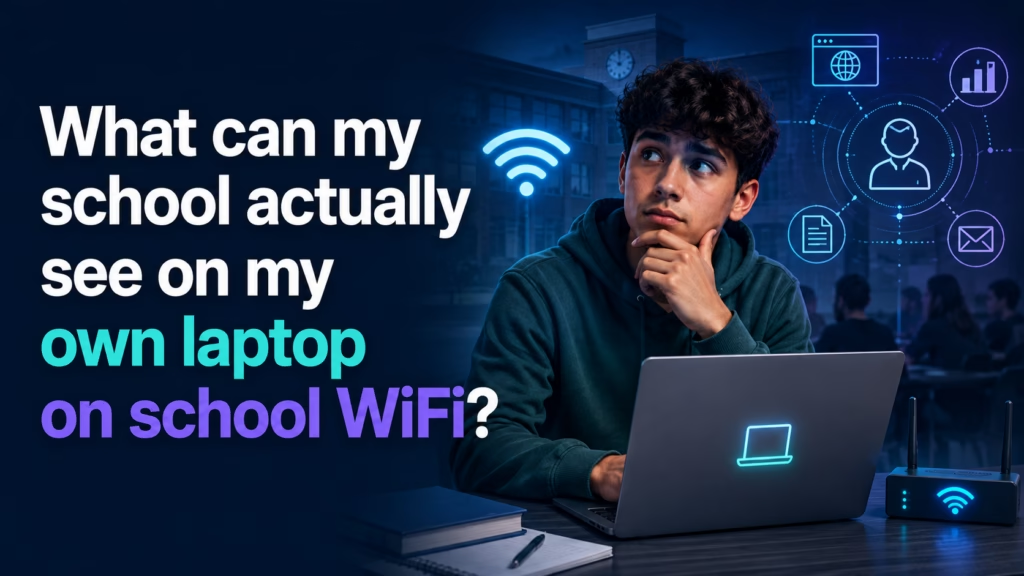
On your own laptop on school WiFi, the school’s network can see which sites you connect to and when — and unlike most networks, schools frequently run active content filtering that blocks and logs by category. What they cannot see is the contents of encrypted traffic: your messages, passwords, and specific pages. The critical distinction is device ownership. Your laptop, their WiFi = network-level visibility only. Their laptop, or their required software on your laptop = potentially everything, including what you type.
School networks are not neutral pipes. Most run content filtering that inspects and blocks traffic by category — adult content, gambling, sometimes social media and gaming. In the United States, schools receiving federal E-Rate discounts are required to filter certain content, so this is policy-driven rather than a matter of individual schools being unusually nosy.
The practical consequence is that school networks tend to log more, and more deliberately, than a café or an apartment building. Filtering systems produce records by design: what was requested, whether it was blocked, from which device, at what time.
So the baseline assumption on school WiFi should be that domain-level activity is being recorded somewhere, and that a specific person could look at it if they had reason to.
Domain names. The sites and services you connect to, through DNS requests and connection metadata.
Blocked attempts, flagged specifically. If you try to reach something the filter blocks, that’s a logged event — often more prominently than ordinary traffic. Repeatedly hitting blocked categories is the thing most likely to get a name in front of an administrator.
Timing, duration, and volume. Standard network metadata.
Your device on the network, tied to whatever login you used to join.
If the laptop is genuinely yours, with nothing installed by the school, encryption holds:
1. Message contents in encrypted apps.
2. Passwords typed into websites.
3. Specific pages, searches, videos, or documents — the domain, not the detail.
4. Local files on your machine. The network sees traffic, not your hard drive.
This is the standard boundary described in our guide to what a WiFi owner can see. Schools filter more aggressively, but they don’t break encryption to do it.
“So the filter is the difference. Not the spying — the filtering.” — Essentially. Most networks passively could look. School networks are actively looking, but only at the category level. “That is a meaningful distinction that I will now ignore entirely.”
The answer changes completely in three situations, and it’s worth knowing which one you’re in.
A school-issued laptop or Chromebook. Assume comprehensive visibility. Managed Chromebooks and school-imaged laptops can report browsing history, installed extensions, and app usage directly to an admin console, regardless of which network you’re on. Taking a school Chromebook home and using your own WiFi does not make it private — the reporting is on the device, not the network.
Required software on your own laptop. Some schools require a certificate, VPN client, or monitoring agent to join the network or access resources. A network certificate in particular can allow inspection of traffic that would otherwise be encrypted. If you were asked to install something to get online, read what it was.
Exam proctoring software. Typically has deep access while running — screen, camera, sometimes running processes. Usually limited to the exam session, but it’s the most invasive thing most students install.
A school account on your own device also matters. If you’re signed into a school-issued Google Workspace or Microsoft account, activity within that account can be visible to administrators, even on your personal laptop and your home WiFi.
Windows: Settings → Accounts → Access work or school. Anything listed there is a managed connection. Also check installed certificates if you were asked to add one.
Mac: System Settings → General → Device Management. A school profile appears there. Also check Keychain Access for installed certificates.
Chrome: Type chrome://management in the address bar. It will tell you directly whether the browser or device is managed, and by whom.
If all of these are clean, you’re in the network-only situation.
Cellular data or a phone hotspot removes the school network entirely. The most complete fix and the least dramatic.
A VPN encrypts traffic before it reaches their filter, so they see an encrypted connection rather than domains. Two real caveats: many school networks deliberately block VPN traffic, and using one to bypass filtering may breach the acceptable-use policy you agreed to when you joined. The technical answer and the “won’t get you in trouble” answer are not the same answer here.
Using a personal account rather than the school account for personal things is worth doing regardless. It costs nothing and separates the two cleanly.
Nothing you do at the network level helps if the school controls the device itself. If it’s their laptop, treat it as their laptop.
“So the rule is: their device, their rules. Your device, their pipe.” — That’s the whole article in eight words, Nana. “I could have written this in considerably less time than you did.” You could not, because you’d have added a section about enchanting the router.
On your own laptop on school WiFi, the network sees which sites you connect to and when, and school networks filter and log more actively than most — blocked attempts are logged prominently. They cannot see encrypted contents: messages, passwords, or specific pages. The line moves entirely if the device is school-issued (managed Chromebooks and laptops report activity regardless of network), if you installed a required certificate or monitoring agent, or if you’re signed into a school account — that follows you onto home WiFi too. Check via chrome://management, Windows “Access work or school,” or Mac Device Management. Cellular data is the cleanest fix; a VPN works technically but may be blocked and may breach the acceptable-use policy.

Hi. I’m Ken. I run Two Second Solutions, a one-man agency that somehow landed a fox spirit influencer as a client. I drink too much coffee, blog when I need to vent, and regularly update my résumé just in case she sets the office on fire again. I’m not crying — it’s just spell residue.

By Ken Hollow, the man who watched a fox spirit read the words “This site uses cookies” and respond with genuine excitement because she thought…
By Ken Hollow, the man who spent an hour explaining to a fox spirit that a six-digit code is not “a loyalty test from the…
By Ken Hollow, who is not on anyone’s family plan and yet somehow still gets asked to explain them “Ken. Hypothetically.” “That word never precedes…