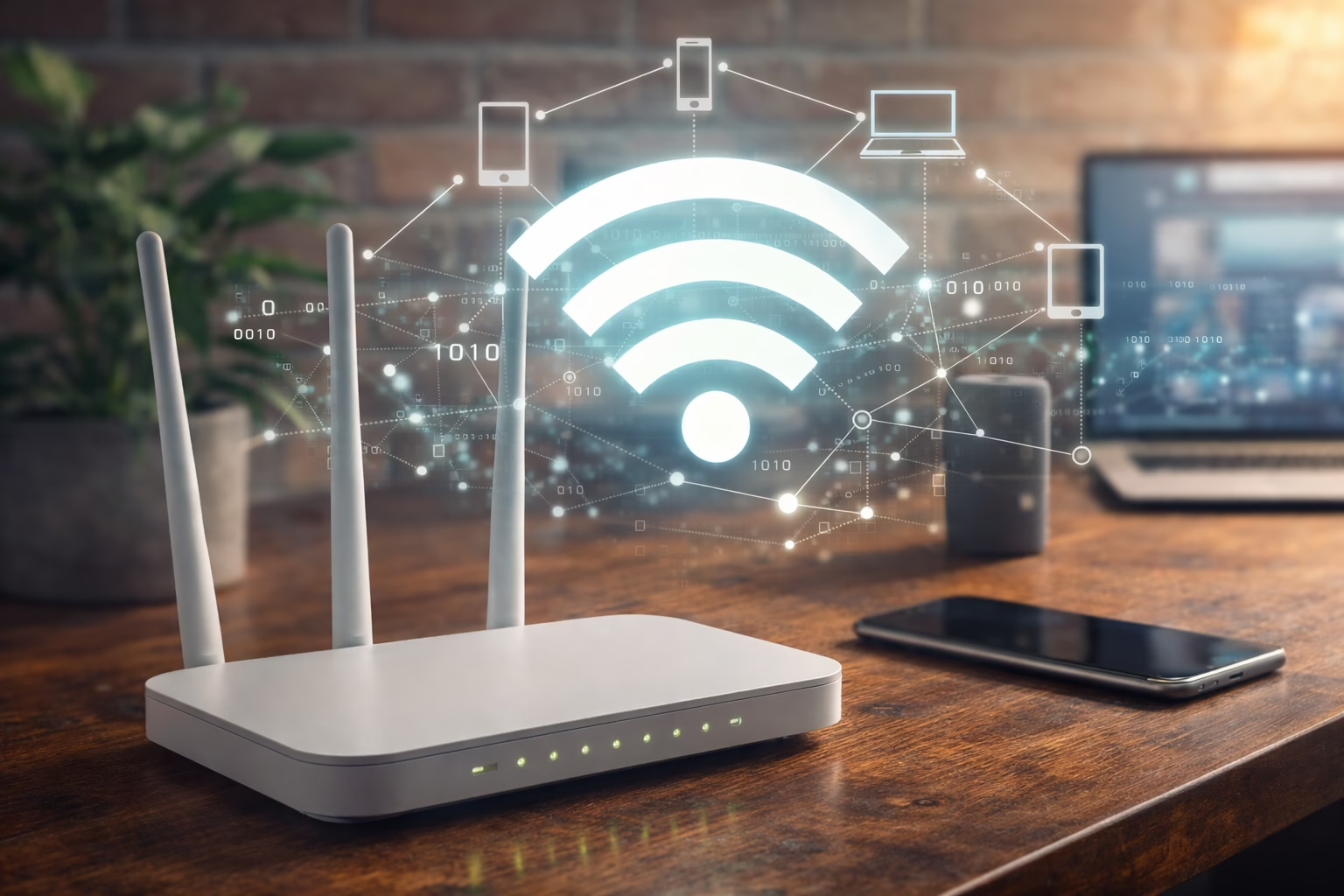
Why is my WiFi So Slow?
By Ken Hollow, the only IT support tech whose help tickets come written in riddles and moonlight It started, as most catastrophes do, with Nana…

By Ken Hollow, the man who had to explain radio frequencies to someone who thinks GHz stands for “Gigantic Hertz of Sorcery”
Nana was furious. Her livestream was buffering, her viewers were leaving, and she’d already rebooted the router twice — which in her words involved “threatening the blinking lights until they submitted.”
I looked at her phone. She was connected to the 2.4 GHz network. The router was three feet away.
“Nana. Switch to 5 GHz.”
“Is that… stronger magic?”
“It’s a faster frequency. You’re sitting right next to the router. You don’t need range, you need speed.”
She switched. The buffering stopped. She didn’t thank me. Standard.
If you’ve ever looked at your WiFi settings and noticed two networks with the same name — one with “5G” or “5GHz” at the end — and wondered which one to pick, this is for you. It’s simpler than it sounds, and choosing the right one can make a noticeable difference in your internet experience.
2.4 GHz has longer range but slower speeds and more interference. 5 GHz has faster speeds but shorter range and doesn’t penetrate walls as well. Use 5 GHz for devices close to the router (streaming, gaming, video calls). Use 2.4 GHz for devices far from the router or smart home gadgets that don’t need speed. Most modern routers broadcast both simultaneously — you just need to connect each device to the right one.
2.4 GHz and 5 GHz refer to the radio frequencies your WiFi router uses to communicate with your devices. They’re two separate “lanes” your data can travel on. Your router broadcasts both at the same time (if it’s a dual-band router, which most routers made after 2015 are), and your devices connect to one or the other.
The numbers don’t mean one is “better” than the other in every situation. They have different strengths, and the right choice depends on what you’re doing and where you’re doing it.
And to clear up the most common confusion right away: 5 GHz WiFi has nothing to do with 5G mobile data. They share the number 5 and that’s where the similarity ends. 5G is a cellular network standard. 5 GHz is a WiFi frequency band. Your router labeling a network “5G” is just shorthand for 5 GHz — it has zero connection to your phone’s 5G mobile service.
“Wait — 5G WiFi and 5G phone internet are different things? Who approved this naming system? I want to file a complaint.”
This is the fundamental trade-off, and once you understand it, everything else makes sense.
| Feature | 2.4 GHz | 5 GHz |
|---|---|---|
| Maximum speed | Up to ~300 Mbps | Up to ~1,300 Mbps (or higher on WiFi 6) |
| Range | Longer — better through walls and over distance | Shorter — weakens faster through obstacles |
| Wall penetration | Good — longer wavelengths pass through solid objects more easily | Poor — shorter wavelengths are absorbed or blocked by walls, floors, furniture |
| Congestion | Crowded — shared with microwaves, Bluetooth, baby monitors, neighbor routers | Less crowded — fewer devices use this band, more channels available |
| Best for | Smart home devices, browsing far from router, IoT gadgets | Streaming, gaming, video calls, anything near the router |
The physics behind it is straightforward: 2.4 GHz uses longer radio waves, which travel farther and bend around obstacles more easily but carry less data per second. 5 GHz uses shorter waves that carry much more data but lose strength faster and struggle to penetrate walls and floors.
Even if your device shows full WiFi bars on 2.4 GHz, you might still experience sluggish speeds. There are two reasons for this.
First, congestion. The 2.4 GHz band only has three non-overlapping channels (1, 6, and 11). Every router in your building — plus your neighbors’ routers — is fighting over those same three channels. In an apartment building, you might have fifteen routers all competing on the same frequency. That interference slows everyone down.
Second, other devices share the frequency. Microwaves operate at 2.45 GHz — almost exactly the same frequency. Bluetooth devices, baby monitors, cordless phones, and garage door openers all crowd this band too. If your WiFi gets slow every time someone microwaves leftovers, now you know why.
The 5 GHz band has 23+ non-overlapping channels and far fewer devices competing on it. There’s simply more room for your data to travel without bumping into interference.
The best approach isn’t picking one band for everything — it’s putting each device on the band that makes sense for what it does and where it is.
Streaming video — Netflix, YouTube, Disney+, anything in HD or 4K. Streaming needs bandwidth, and 5 GHz delivers it. If your stream keeps buffering, switching to 5 GHz is often the fix (assuming you’re within reasonable range of the router).
Video calls — Zoom, Teams, FaceTime. Video calls are bandwidth-intensive and latency-sensitive. 5 GHz provides both the speed and the lower congestion that keeps calls smooth.
Gaming — Online gaming cares more about latency (response time) than raw speed. 5 GHz has lower latency because there’s less interference. If you’re gaming on WiFi, 5 GHz is the better band. (A wired ethernet connection is still better than either, though.)
Any device close to the router — If your laptop, TV, or gaming console is in the same room as your router or one room away, there’s no reason not to use 5 GHz. You get the speed advantage without the range limitation being an issue.
Casting to your TV — When you’re casting or mirroring your phone to a TV, both devices should ideally be on the same band, and 5 GHz gives the smoothest experience with the least lag.
Smart home devices — Smart plugs, smart bulbs, security cameras, robot vacuums, and most IoT gadgets. Many of these only support 2.4 GHz anyway, and they don’t need high speeds — they just need a reliable connection.
Devices far from the router — That laptop in the upstairs bedroom, the tablet in the garden, the phone in the far corner of the house. If 5 GHz can’t reach, 2.4 GHz is your fallback.
Basic browsing and email — If you’re just checking email, reading articles, or scrolling social media, you don’t need the speed of 5 GHz. Either band works, but 2.4 GHz gives you more range flexibility.
“So 5 GHz for my livestream setup in the studio, 2.4 GHz for the ‘enchantment orb’ (smart light) in the bedroom?” — Yes. That’s exactly right. I’m almost proud.
Many routers show 2.4 GHz and 5 GHz as two separate network names — something like “HomeWiFi” and “HomeWiFi-5G.” If yours does this, it’s obvious which one you’re on.
If your router uses the same name for both bands (called band steering — the router automatically assigns devices), you can still check:
On iPhone: Go to Settings → WiFi → tap the “i” icon next to your connected network. Look for “Frequency” — it will say either 2.4 GHz or 5 GHz.
On Android: Go to Settings → WiFi → tap your connected network. The details screen usually shows the frequency band.
On Windows: Click the WiFi icon in the taskbar → click “Properties” on your connected network. Look for “Network band” — it’ll say 2.4 GHz or 5 GHz.
On Mac: Hold the Option key and click the WiFi icon in the menu bar. The dropdown will show the channel and frequency of your current connection.
If you’ve been shopping for routers recently, you might have seen references to 6 GHz. This is the newest frequency band, introduced with WiFi 6E and carried forward into WiFi 7. It works like 5 GHz but with even more available channels, less congestion, and potentially faster speeds.
The catch: both your router and your device need to support WiFi 6E or WiFi 7 to use the 6 GHz band. As of 2026, most newer flagship phones and laptops support it, but many devices in your home (older phones, tablets, smart home gadgets) don’t yet. It’s the future, but for most people right now, understanding and properly using 2.4 GHz and 5 GHz covers 95% of the practical decisions you need to make.
Spread your devices across both bands. Don’t put everything on 5 GHz just because it’s faster. If twenty devices are all competing on 5 GHz, you’ve recreated the congestion problem. Put speed-critical devices on 5 GHz and everything else on 2.4 GHz.
If you’re troubleshooting slow WiFi, try switching bands. Before assuming your internet is broken, try connecting to the other band. Sometimes a simple switch from 2.4 to 5 (or vice versa) solves the problem immediately.
Keep your router in an open, central location. This matters even more for 5 GHz since its range is shorter. Walls, metal objects, and appliances all reduce signal strength. The fewer obstacles between your router and your device, the better 5 GHz performs.
Consider a mesh WiFi system for larger homes. If your home is large enough that 5 GHz can’t reach every room, a mesh system places multiple access points around your home so you get 5 GHz speeds everywhere without dead zones. It’s the best solution for homes over about 1,500 square feet.
“Ken installed a mesh system and now I have fast WiFi in every room including the bathroom. He asked why I need fast WiFi in the bathroom. I said it’s for ‘research.’ He stopped asking.”
2.4 GHz and 5 GHz are two WiFi frequency bands your router uses simultaneously. 2.4 GHz travels farther and penetrates walls better but is slower and more congested. 5 GHz is faster and less crowded but has shorter range and doesn’t go through walls as well. Use 5 GHz for streaming, gaming, video calls, and devices near the router. Use 2.4 GHz for smart home gadgets and devices far from the router. And no, 5 GHz WiFi has nothing to do with 5G mobile networks — they just share a number.

Hi. I’m Ken. I run Two Second Solutions, a one-man agency that somehow landed a fox spirit influencer as a client. I drink too much coffee, blog when I need to vent, and regularly update my résumé just in case she sets the office on fire again. I’m not crying — it’s just spell residue.